

The Nightmap · Version 1.19.0
AstroCooker manual
An editable Photoshop workflow for preparing nightscape images. This manual covers installation, first runs, layers, settings, repair review and recipes.
Before you begin
Start with the cleanest practical 16-bit RGB image, either a raw conversion or a stacked result. AstroCooker creates a new AstroCooker group and preserves the original document layers outside it.
Required
- A current desktop version of Adobe Photoshop with scripting, Smart Objects, Camera Raw Filter and Select Sky.
- An open RGB image. AstroCooker does not replace your original layers.
Optional processing tools
- BlurXTerminator for star correction and repair review.
- NoiseXTerminator for restrained sky noise reduction and an optional foreground pass.
- StarXTerminator, or free StarNet V2, for Starless and Stars layers.
RC-Astro tools use the CLI
AstroCooker uses the RC-Astro command-line interface (CLI), not the native Photoshop plug-ins. Install the CLI, download its models, and activate the products you plan to use. AstroCooker checks the CLI and each product licence before enabling BlurXT, NoiseXT or StarXT. The same RC-Astro licence can be used with the CLI, so a separate licence is not required.
Optional: create a camera-linear profile
A normal Adobe camera profile applies a base tone curve so a RAW file looks finished. For BlurXT, that contrast curve means the image is already more processed before the CLI sees it. A custom camera profile with a linear base tone curve produces a darker, flatter Camera Raw starting point and may reduce artefacts around stars.
Ready-made option: Good Light’s Linear Profile Repository offers free profiles for many standard camera models. It can be a useful shortcut for an unmodified camera. For an astro-modified camera, create and test your own profile from a DNG made with that camera instead. Its spectral response can differ from the stock model used for a ready-made profile.
- Convert one RAW from your camera to DNG using Adobe DNG Converter.
- Open the DNG in the Adobe DNG Profile Editor.
- In Tone Curve, set Base Tone Curve to Linear.
- Export the profile with a recognisable name, such as
Camera Model Linear. - Restart Photoshop and select it from Camera Raw’s Profile Browser when opening RAWs from that camera model.
Keep the conversion gentle: use 16 Bits/Channel, a linear Point Curve, no output sharpening, and avoid AI denoise, strong noise reduction, sharpening and heavy tonal adjustments before running AstroCooker. White balance, lens corrections and chromatic-aberration correction are still fine when needed.
Important: this removes Adobe’s base tone curve only. Camera Raw still demosaics, white-balances and colour-converts the file, so the Photoshop document is not mathematically linear floating-point astronomy data. Use it as a helpful nightscape starting point, inspect BlurXT at 100%, and use PixInsight, Siril or Seti Astro Suite Pro for a true linear deep-sky workflow.
Install and update
Keep the JSX script and its native helper together. Installing only the JSX prevents BlurXT blemish detection from running.
When RC-Astro releases a new model, update its CLI and model files before restarting Photoshop. AstroCooker reads the installed CLI model information rather than relying on a fixed ML version.
macOS installation
- Download and extract the Mac package.
- Copy
AstroCooker.jsxandblurxt-repair-mask-calibratorto/Applications/Adobe Photoshop [version]/Presets/Scripts/. - Restart Photoshop, then choose File → Scripts → AstroCooker.
Windows x64 installation
- Download and extract the Windows package.
- Copy
AstroCooker.jsxandblurxt-repair-mask-calibrator.exeto Photoshop’sPresets\Scriptsfolder. - Restart Photoshop, then choose File → Scripts → AstroCooker.
Run without installing
AstroCooker.jsx. Browse mode checks for updates but does not replace files automatically.First run
- Open your image in Photoshop.
- Choose File → Scripts → AstroCooker.
- Choose AstroCooker Recipe for the first run.
- Leave optional stages at their defaults unless your image needs a different choice.
- Click Run AstroCooker and do not switch documents while it is working.
When processing completes, inspect the generated AstroCooker group. Adjust its native layers or legacy Smart Filters, layer opacities and masks as required.
Understand the layer stack
AstroCooker builds from the base upward. The example below shows a fresh native-adjustment stack on Photoshop 27.10 or newer. The exact contents depend on the tools selected, recipe and whether a foreground is detected. Older Photoshop versions use Camera Raw Smart Filters instead of the native Sky adjustment layers.
Rebuild Finishing: After editing Sky or Foreground Light, colour, vibrance, clarity, dehaze or another lower layer, run AstroCooker again and choose Rebuild Finishing. It restamps High Pass, Unsharp Mask and Orton Effect from bottom to top using the current document settings, retaining opacity, fill opacity, blend modes, clipping and visibility. Painted masks on Unsharp Mask and Orton Effect are retained.
High Pass mask: High Pass is the exception: its mask is regenerated from the Sky mask, enabled, set to zero feather and refined with Shift Edge −100%. Painting on the previous High Pass mask is replaced; refine the Sky mask before rebuilding when you want to change that boundary.
Existing AI results and adjustment layers stay in place, and white balance is not measured again. Raster filter strengths come from the attached recipe because destructive filter settings cannot be recovered from pixels. Direct painting on the three rebuilt raster layers is replaced; paint on the Unsharp Mask or Orton Effect masks to retain those edits.
Editing the layers below Stamped: High Pass, Unsharp Mask and Orton Effect are baked from everything beneath them, so changes to Sky Light, Color and Vibrance, or Clarity and Dehaze are not visible until they are restamped. To preview an edit before committing to it: (1) turn off visibility on the Stamped group; (2) adjust the Sky (or Foreground) Light, Color and Vibrance, or Clarity and Dehaze layers underneath; (3) turn Stamped's visibility back on; (4) run AstroCooker and choose Rebuild Finishing to bake the change into High Pass, Unsharp Mask and Orton Effect. Hiding Stamped only changes what you see while you work: Rebuild Finishing is still required afterward, since the three layers keep their old baked pixels until then.
AstroCooker
├─ Stars
├─ Foreground
│  └─ Foreground NoiseXT, when enabled
├─ Sky
│  ├─ Vignette
│  ├─ Custom adjustment layers
│  ├─ Sky Tone Normalization
│  ├─ Stamped
│  │  ├─ Orton Effect
│  │  ├─ Unsharp Mask
│  │  └─ High Pass
│  ├─ Selective Color
│  ├─ Sky Clarity and Dehaze
│  ├─ Sky Color and Vibrance
│  ├─ Sky Light
│  └─ Sky base Smart Object
├─ Starless
├─ NoiseXT, when enabled
├─ BlurXT ML5 Correct Only
└─ BlurXT AI2 Repair, only for a legacy ML4 repair
- Stars
- Independent Screen-blended stars. Use its shared Sky mask to keep stars out of the foreground.
- Foreground
- Your unprocessed foreground source, isolated with the shared Foreground mask. Foreground NoiseXT can replace it when that optional pass is enabled.
- Sky and Foreground Light
- On Photoshop 27.10 or newer, editable Light layers hold Exposure, Contrast, Highlights, Shadows, Whites and Blacks. Light is source-dependent, so it must remain immediately above its Sky or effective Foreground source. Do not place another adjustment between them.
- Color and Vibrance / Clarity and Dehaze
- On Photoshop 27.10 or newer, white balance, colour intensity, clarity and dehaze are kept in their matching native layers above Light. Foreground layers are clipped to the effective foreground source. Older Photoshop versions retain the Camera Raw Smart Filter workflow.
- Sky Tone Normalization
- An editable Curves layer that replaces the former Linear Contrast preset and provides a more suitable tonal starting point for the night sky.
- Vignette
- The final managed Sky adjustment, placed at the top of the Sky group.
- Stamped
- A yellow group holding High Pass, Unsharp Mask and Orton Effect together. Toggle its visibility off to preview the layers beneath it, then back on before running Rebuild Finishing. Images cooked before this group was introduced keep High Pass, Unsharp Mask and Orton Effect directly in Sky; Rebuild Finishing and Apply Recipe both work the same way either way.
- High Pass, Unsharp Mask, Orton Effect
- High Pass starts from the visible lower stack, including native Sky Light and colour adjustments. Unsharp Mask stamps the completed High Pass stack, and Orton Effect takes another fresh stamp after Unsharp Mask. These are baked pixels: use Rebuild Finishing after changing the appearance below them. High Pass uses an enabled sky mask with zero feather and Shift Edge −100% to constrain sharpening to the sky; its mask is regenerated on rebuild.
- Starless
- The visible starless foundation. Leave it on unless you specifically want to inspect another base layer.
- BlurXT layers
- Foundation layers. Do not move them: AstroCooker keeps them at the bottom of its processing stack.
Settings reference
The settings dialog remembers choices between repair runs. Start with the defaults; the available optional processors depend on what AstroCooker finds and verifies.
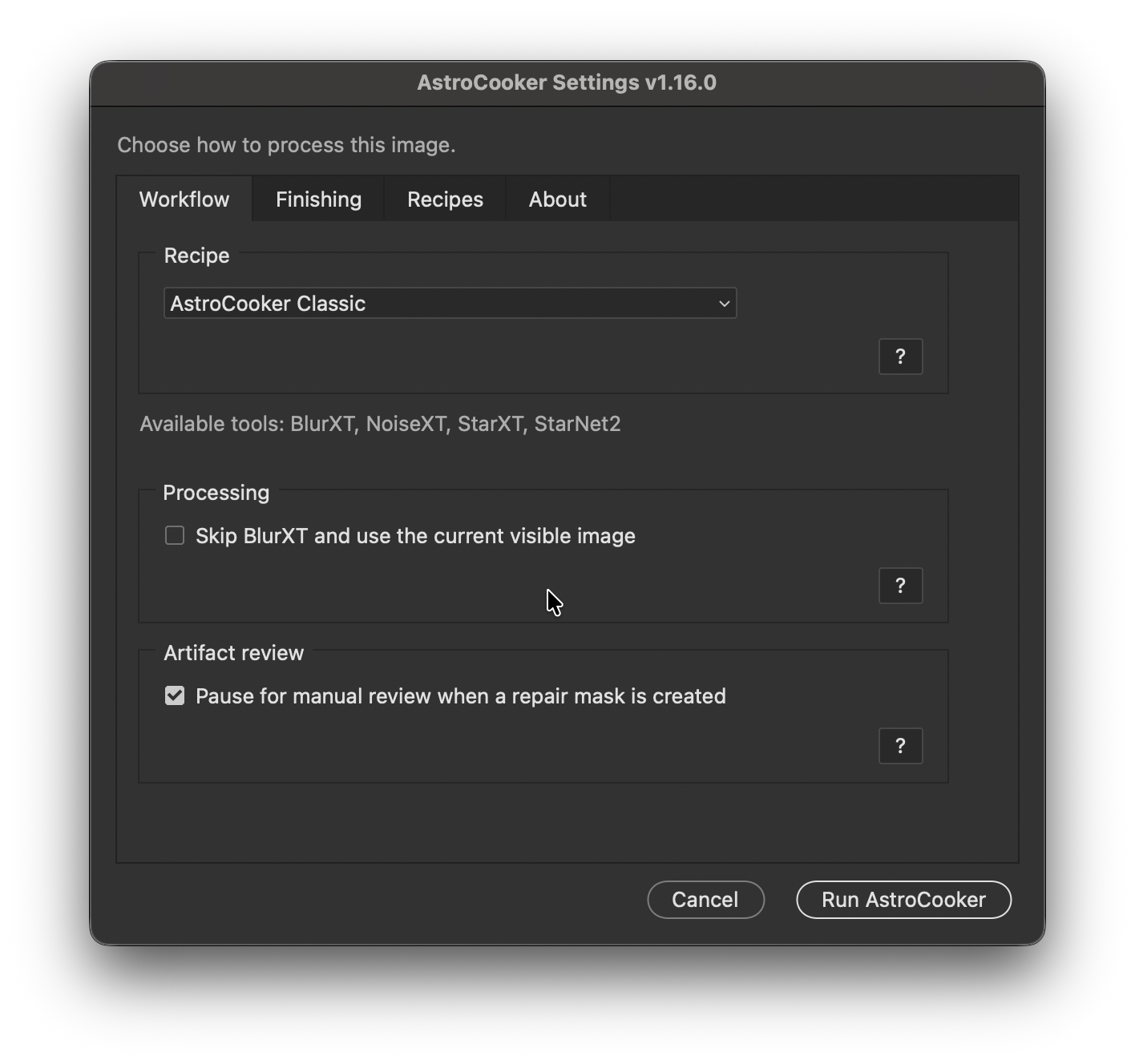
Workflow tab
Finishing tab
Recipes tab
Legacy ML4 BlurXT repair review
ML5 is now the recommended model. In our AIV01725 comparison it fixes the compact colour blemishes seen in the ML4 result, so ML5 is returned directly without the older repair heuristic. When you deliberately process with ML4 and its known colour blemish is detected, AstroCooker can still add a cleaner ML2 correction layer below ML4, create an editable repair mask, and pause for review.
- Inspect BlurXT AI4 Correct Only at 100%.
- Paint black on its repair mask over any remaining AI4 blemishes to reveal AI2 below.
- Run AstroCooker again. The primary button changes to Continue.
Video: legacy ML4 repair, inspect and resume workflow.
Recipes
Use and apply a recipe
- Cook an image with Classic or a custom recipe.
- Adjust generated layers in Photoshop.
- Run AstroCooker again to save detected changes, or use Save from Document….
- On an existing cooked image, choose a recipe and click Apply Recipe.
Applying a recipe updates the editable finishing stack. Matching native adjustment-layer or Camera Raw settings are skipped. AI processing and sky separation are not rerun.
Custom adjustment layers
Recipes can capture supported adjustment layers inside the AstroCooker, Sky or Foreground groups. Their type, settings, name, stack position, visibility, opacity, blend mode and clipping state are saved.
- Hue/Saturation
- Curves
- Levels
- Color Balance
- Exposure
- Vibrance
- Photo Filter
- Black & White
- Channel Mixer
- Selective Color
- Gradient Map
Community recipes
Choose Community… in the Recipes tab to view curated recipes. Downloads are checksum-verified before installation. You can import, export, rename and delete your own recipes, while AstroCooker Recipe remains read-only. Submit a recipe for community review.
Editing the result
- On Photoshop 27.10+, edit the Sky or Foreground Light, Color and Vibrance, and Clarity and Dehaze layers directly. On older versions, double-click the corresponding Camera Raw Smart Filter.
- Edit or reduce the Sky Tone Normalization Curves layer when the image needs a different tonal treatment.
- Before editing the layers below the Stamped group, turn Stamped's visibility off to preview the change, then back on and run Rebuild Finishing to bake it in.
- Use layer opacity for High Pass, Unsharp Mask and Orton Effect before changing their blend modes.
- Use the shared Sky and Foreground masks to refine boundaries.
- Add supported custom adjustment layers within the appropriate AstroCooker group when you want them included in a recipe.
- Keep BlurXT foundation layers at the bottom of the AstroCooker group.
Appendix: workflow diagrams
How a RAW file actually moves through each of AstroCooker’s three workflows: the initial run, Rebuild Finishing and Apply Recipe. The cyan boxes mark High Pass, Unsharp Mask and Orton Effect, the Stamped group, since that same stamp-then-mask mechanism is what all three workflows come back to.
Initial run
Five phases, in order: send the flattened image to external tools, bring the results back and derive Stars, split Sky from Foreground, build the non-destructive adjustment branches, then stamp the raster finishing stack.
Phase A · external processing
Phase B · deriving Stars
Phase C · Sky / Foreground split
Phase D · non-destructive adjustment branches
Phase E · the raster finishing stamp · produces the Stamped group
Rebuild Finishing
Runs against an already-cooked stack: no CLI, no RAW. You edited Sky or Foreground Light, Color or Clarity by hand and want High Pass, Unsharp Mask and Orton Effect to reflect it. One pass over the same three layers, each replaced in place.
Per-layer rebuild, run for High Pass, then Unsharp Mask, then Orton Effect
Apply Recipe
Also runs against an already-cooked stack, but the trigger is a chosen recipe rather than a manual edit. AstroCooker checks whether the recipe actually requires restamping before doing any pixel work.
Two branches, decided once per apply
Troubleshooting
An RC-Astro tool is not available
The repair mask could not be recreated
A downloaded community recipe fails verification
A recipe does not seem to apply
Changes below High Pass are not visible in the final image
Where are the performance timings?
logs folder within The Nightmap application-support folder. AstroCooker-performance-latest.log contains the most recent profile; timestamped copies preserve earlier runs for comparison.Change Log
Version 1.19.0
- New “Restore star glow from a diffusion or mist filter” option in Optional processing. BlurXT reads the broad halo a mist filter such as Capture The Night adds as an optical defect and tightens it away; this measures that halo from your own frame and adds it back before the star separation runs, so nothing is synthesised. Glow strength and Soften control the amount and smooth the residual. Needs a BlurXT pass, so it is unavailable with Skip BlurXT.
- Fixed a sky-only image failing at the very end of a cook with “The command ‘Set’ is not currently available” and rolling back every change. An image with no foreground is cooked without sky masks, and High Pass was still being sent a mask feather it had no mask to accept.
- Fixed the same failure in Rebuild Finishing on a sky-only cook, where High Pass’s mask was regenerated from a Sky layer that has no mask.
- Installing an update no longer asks you to restart Photoshop. Photoshop reads the script from disk each time you run it, so the new version is used the next time you run AstroCooker.
Version 1.18.4
- Fresh cooks and Apply Recipe now suspend Photoshop’s History while stamping and masking the finishing layers, cutting a meaningful share of run time without changing pixel output.
- High Pass, Unsharp Mask and Orton Effect are now grouped into a yellow “Stamped” group. Hide it in one click to preview an edit to the layers underneath, then re-enable it and run Rebuild Finishing to bake the change in; see the manual’s new workflow appendix.
- Fixed Rebuild Finishing keeping High Pass’s existing mask instead of regenerating it from Sky with Shift Edge −100% on every rebuild after the first.
- Fixed Apply Recipe’s raster rebuild occasionally baking Stars into what should be a starless High Pass, Unsharp Mask and Orton Effect stack.
- Fixed several layer colour labels (including the new Stamped group) not applying correctly.
Version 1.18.3
- Fixed fresh finishing stamps that could omit native Sky Light and colour adjustments, causing a broad colour or brightness change when Unsharp Mask was toggled.
- Orton Effect now takes a fresh visible-merged stamp after Unsharp Mask, including its current mask, opacity and blending.
- High Pass sharpening uses an enabled sky mask with zero feather and Shift Edge −100%. Rebuild Finishing regenerates this mask from Sky; painting on the old High Pass mask is replaced.
- Consolidated finishing and layer-state handling and added Photoshop pixel regression tests for fresh creation and rebuilds.
Updating an existing cooked image: After installing 1.18.3, run AstroCooker and choose Rebuild Finishing to refresh its baked finishing layers. Update installation alone does not change existing layer pixels. Save a copy first if you want to retain the previous High Pass mask.
Version 1.18.2
- Improved Apply Recipe reliability and preserved custom Sky Tone Normalization curves when saving and reapplying recipes.
Version 1.18.1
- Fixed RC-Astro CLI detection and licence checks for Windows installations under Program Files.
Version 1.18.0
- Improved automatic Sky analysis and finishing performance.
- Added native Light, Color and Vibrance, and Clarity and Dehaze layers for Photoshop 27.10 and newer.
- Added Rebuild Finishing to refresh High Pass, Unsharp Mask and Orton Effect after editing the layers below them.
- Updated the built-in AstroCooker Recipe while retaining compatibility with older recipes, cooked documents and Photoshop versions.
Version 1.17.8 / 1.17.8_b1
- Night-sky white-balance corrections are calculated per image and applied in the Sky Camera Raw Smart Filter.
- Replaced the fixed Linear Contrast preset with an editable Sky Tone Normalization Curves layer.
- Moved Vignette to the top of the Sky group so it remains the final managed Sky adjustment.
Version 1.17.7
- AstroCooker now automatically supports current and newer BlurXTerminator models from ML5 onward.
Version 1.17.6
- Added support for recent RC-Astro CLI updates.
Version 1.17.5
- Improved sky-finishing and recipe workflow.
- Added moderated community recipe submissions.
Version 1.17.4
- Custom adjustment layers within the AstroCooker group are now part of a recipe.