

The Nightmap
Planetarium guide
The Planetarium is a full sky chart built into the map: search for anything, drag and zoom, and run a live tour of what's up right now. This guide covers using it (layers, your camera frame, satellites, the phone app and links), putting your own photos in it, and sharing it. If you want to script a show of your own, the Planetarium Tour Manual is the reference for that.
What the Planetarium is
Open it from the map's Tools grid (the wrench icon, or the onboarding panel), or go straight to /planetarium. It draws stars, constellations, deep-sky objects, planets, comets, satellites and your own terrain, all from real Hipparcos, OpenNGC and Gaia data (nothing from Stellarium), and simulates any date and location, not just right now.
Zoom in on the Sun and select it to open its details. The Sun card shows the current SDO/HMI white-light image with real sunspots; switch on SDO AIA 171 Å to blend in the latest available coronal image, then adjust its opacity.
Moving around the sky
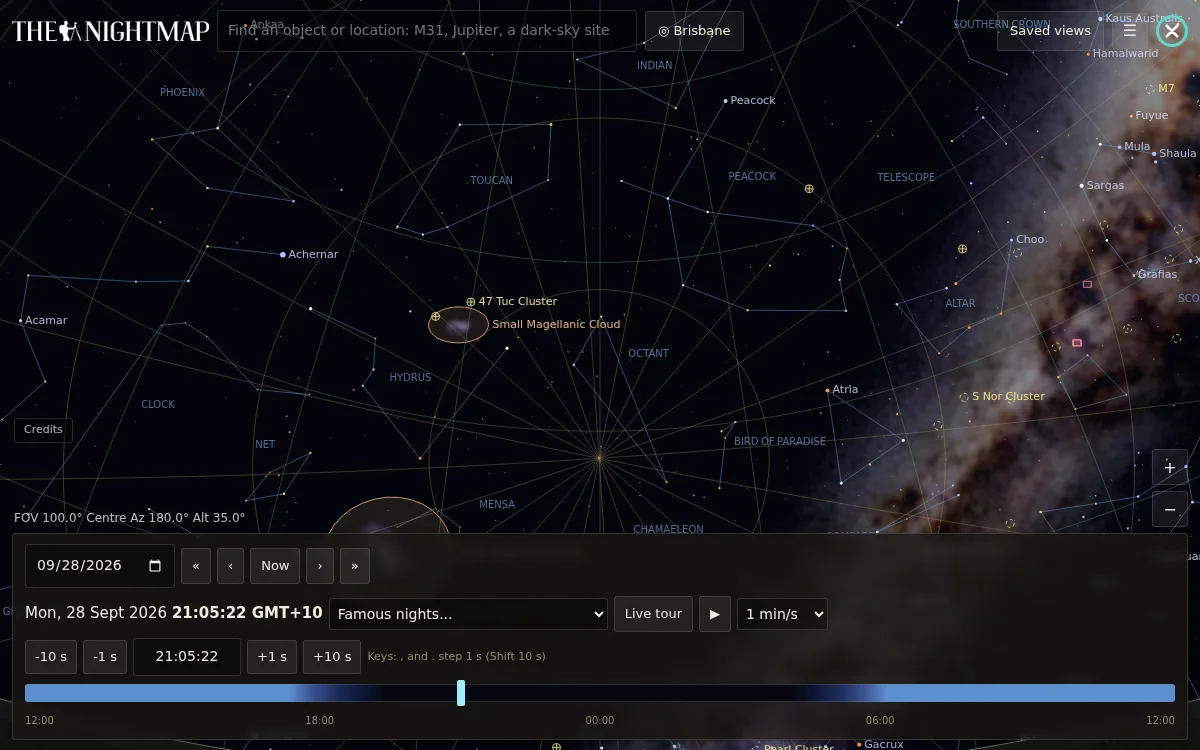
- Search: the box at top-left finds planets, the Sun and Moon, named stars, Messier/NGC objects, comets, "iss"/"css"/"hubble", constellations, and Nightmap locations by name.
- Drag and zoom: click-drag to pan, scroll or pinch to zoom, exactly like the map itself.
- Location: the pill next to the search box opens the location picker (URL, last used, a geocoder, or GPS).
- Date and time: the date field and the buttons under it (
-10 s,-1 s,+1 s,+10 s) set the simulated clock exactly, and thePlaybutton and speed dropdown run it forward. - Time strip: the bar along the bottom has hour steps, Now, the clock (press it for the exact date and time), Tours, Play and the speed. Above its slider, curves show the Sun, Moon and Milky Way core rising and setting through the night, shaded by twilight, with the times they cross the horizon. Drag along the curves to set the time.
- Tonight chip: on a wide screen, a one-line summary appears over the quiet sky: when it is properly dark, the Moon's phase and its rise and set across that window, and the brightest planet well up. Press it to play What's On Tonight. It hides once you select something, and you can dismiss it for the session.
- Saved views and links: the icons at the top right save a view to your account and copy a link to exactly what you are looking at (place, time, aim, zoom and camera). The person-shaped icon is your profile menu: your profile, sign in and log out. The links section lists what an address can carry.
- Layers: the sliders icon at the top right opens the settings panel. Its Layers tab is where you choose what is drawn (see What you can switch on).
- Sky shape: the Sky shape setting in the Layers tab chooses how the sky is drawn. Dome is the true sky, so the horizon curves when you tilt up. Straight horizon keeps the horizon level at every tilt, like a panorama, and verticals stay vertical, which suits landscape and Milky Way planning. The price is that the sky stretches sideways the higher you look, and the point straight overhead cannot be shown (the view stops at 80 degrees up). Camera view, AR and snapshots always keep their own projection. Add
proj=straightorproj=dometo a link to choose it for whoever opens it, for example/planetarium#lat=-28.27&lon=152.74&az=210&alt=35&fov=110&proj=straight. The link wins over the viewer's saved choice for that visit only, and copying the address while Straight horizon is on includes it. A saved view (the bookmark icon) remembers its sky shape too, dome or straight, and opening it restores that shape. - Airglow: tick Airglow (modelled) in the Layers panel to see a faint green glow low on the horizon, and red toward the pole when a geomagnetic storm makes it plausible. It is a typical strength worked out from the solar flux and the Kp forecast, not a forecast of the bands, which nobody can predict. The panel also shows how likely it is that night and when it is best. Cameras pick it up far more readily than the eye does.
- Camera frame: pick a real camera and lens (or a smart telescope) to see exactly what your gear would capture, with the same framing math the FOV Planner uses.
Getting here from the FOV Planner: its panel header has an "Open in Planetarium" button that hands over your exact location, moment, aim, sensor, focal length and orientation, so you can keep exploring from wherever you were planning a shot.
What you can switch on
The Layers tab groups its switches under Sky, Photographs, Ground and Satellites. The Sun, Moon, planets and their pictures, named peaks, comets, the ISS, CSS and Hubble, and the sky imagery are always on.
- Sky imagery. A real photograph of the Milky Way sits behind the stars when you are zoomed out, and survey photographs (DSS, then Pan-STARRS where they exist) take over as you zoom into an object. The Imagery menu picks a survey or the Milky Way panorama, and Opacity sets how strongly it shows. The survey tiles stream from the CDS in Strasbourg and the credit shows while one is on screen.
- Curated deep-sky photographs. A hand-picked set of clean professional pictures (ESO, NOIRLab and ESA/Hubble) fades in over the survey as you zoom into the matching object. My photos is the same for your own photos (see Your own photos); it only appears once you have switched one on.
- The Sun, Moon and planets are drawn as lit, correctly turned globes once they are big enough to see, with the real phase, tilt and Saturn's ring opening. Jupiter's four moons and their shadows are exact, Saturn's, Uranus's, Neptune's Triton and Mars's moons come from JPL Horizons, and the Great Red Spot sits at its real longitude near 2026. Moon craters, maria and landing sites names features on the lit side once the Moon is large enough.
- Ground. Real terrain draws your actual skyline from elevation data, with named peaks along it, as seen from eye height on a tripod. Satellite imagery on terrain drapes real photographs over it, and Moonlit relief and shadows lets the Moon light the land and cast shadows from ridges. The Ground slider lifts the terrain's brightness so you can see the landscape on a dark night.
- Light pollution glow paints the sky glow toward each town from the site's own data, and the panel shows the site's brightness in mag/arcsec² and its Bortle class.
- Comets brighter than the limit in the Comets box are drawn with tails pointing away from the Sun. Bright satellites and Starlink are off until you switch them on; they only draw while sunlit, with a short streak so they are not mistaken for stars.
- Grids and names. The altitude/azimuth and equatorial grids, constellation lines and names, and deep-sky names follow their switches.
- Sky shape is described above under Moving around the sky.
Your camera frame
The Camera tab of the settings panel draws exactly what your gear records. Choose a camera body (stills cameras, astro cameras and smart telescopes are all listed), then a lens or telescope, or type a sensor size and focal length. The focal length goes up to 20,000 mm, and Magnifier multiplies it for a Barlow or extender. The readout shows the effective focal length and the field of view. Camera view switches the whole display to that lens's own picture, so with a star tracker the horizon tilts through the frame as it would in a tracked photo.
- Mount. Follow view centre keeps the frame where you look. Tripod fixes it at one point in the sky, which drifts through as the night goes on. Alt-az tracker follows the stars but stays level with the horizon, so stars rotate in the frame. Star tracker is a polar-aligned mount: the frame holds the stars still and the horizon rotates through it.
- Tracking. On a tracking mount you can follow the stars (sidereal) or follow an object at its own rate (Sun, Moon, a planet, a comet or a satellite). Reframe with Frame it on an object's card, or drag the frame; it keeps that offset as it follows.
- Panorama and mosaic. Turn on Panorama / mosaic and give a width, height and overlap to see every frame of the plan numbered in shooting order, with the sky outside it dimmed and a count such as "columns x rows = frames". Plans over 300 frames are refused.
- Roll turns the frame, and the box beside it takes decimals.
Satellites and transits
The ISS, the Chinese space station (CSS) and Hubble are drawn with a trail (dashed for the last eight minutes, solid for the next twelve) and are searchable. Their cards list the next passes over 10 degrees, marked visible when the satellite is sunlit against a dark sky, with a Go to peak button. Centre keeps one in the middle of the view while the clock runs. Orbit data is only trusted for about two weeks: past ten days from its date the satellite is drawn with a warning, and past thirty it is hidden and the panel says why.
The card also lists the next transits, when a satellite crosses the Sun, Moon, Jupiter or Saturn, with a Go to transit button. A transit can last well under a second, so the view arrives a few seconds early, frozen, and then plays it slowly. The Transit Finder tool (in the Tools grid, for beta testers) finds where on the ground a transit can be seen, and its results open here.
The Parkes radio telescope
Near the CSIRO Parkes Observatory the Planetarium draws the 64 m telescope in 3D, pointed the way it was on the observatory's webcam. The pointing is an estimate from the webcam picture (good to about 10 degrees) and exists in daylight only, so we keep the last two weeks of readings. Move the clock and the dish follows them. At night, and on days with no readings, it repeats the latest day's movements over the hours of darkness, so the dish still sweeps the sky but is not where the telescope really was.
On your phone: AR and offline
- Portrait and landscape. The whole Planetarium works upright on a phone, with the controls in a bottom sheet.
- AR sky view. The AR button (phones, for beta testers) holds the sky up to the real one: allow motion and the camera, and the chart follows where you point. The compass points to magnetic north, which the app corrects for your location's declination. If the overlay is a little off, drag it sideways, or press Align, centre a bright planet, star or the Moon, and press Set north. The overlay is minimal by default (bright stars, planets, the Milky Way, the horizon). The AR bar is a single row; More opens the Milky Way and Minimal switches and the Dim and Glow sliders for a bright camera picture. Tapping the search box hides everything else so you can see what you type, and the results fill the width above the keyboard. A selected object shows as a short strip at the bottom with only its name; tap the name for the full details.
- Offline areas. Tools, then Settings, then Offline areas downloads a circle of map, locations, terrain, light-pollution tiles, photographs and this Planetarium for use with no signal, and keeps going if you move between pages. Pages you have visited are also kept for offline use. A small pill tells you when you are offline, on a weak signal, or back online.
- Open in the app. Links to thenightmap.com open the iPhone app when it is installed. In the Facebook or Instagram browser, which cannot do that, an Open bar offers it.
Links you can build
The address carries the view, so the Copy link button is usually all you need. To write one by hand, put these after /planetarium#, joined with &:
| Parameter | Meaning |
|---|---|
lat, lon, name | The observer's place and its label. |
t | The moment, in milliseconds since 1970 (UTC). |
tz | The time zone for the clock, an IANA name such as Australia/Brisbane. |
az, alt, fov | Where the view is centred and how wide it is, in degrees. |
sel | An object to select, for example sel=M8. |
proj | straight or dome: the sky shape. |
cam, sensor, lens, f, mx, or, roll | The camera frame: camera, sensor, lens, focal length, magnifier, orientation and roll. |
mount, cra, cdec, caz, calt, tgt | How the camera is mounted and where it is pinned. |
pano, pc, pr, po | A panorama or mosaic plan: on, columns, rows and overlap. |
tour | tour=1 starts the live tour. tour=M31 (or a planet, iss, milky way) starts it at that target, fast-forwarding to when it is up. tour=iss sun transit goes to a satellite's transit. |
play, warp, hold, flight | Autoplay and show speed (see Sharing). |
The live tour
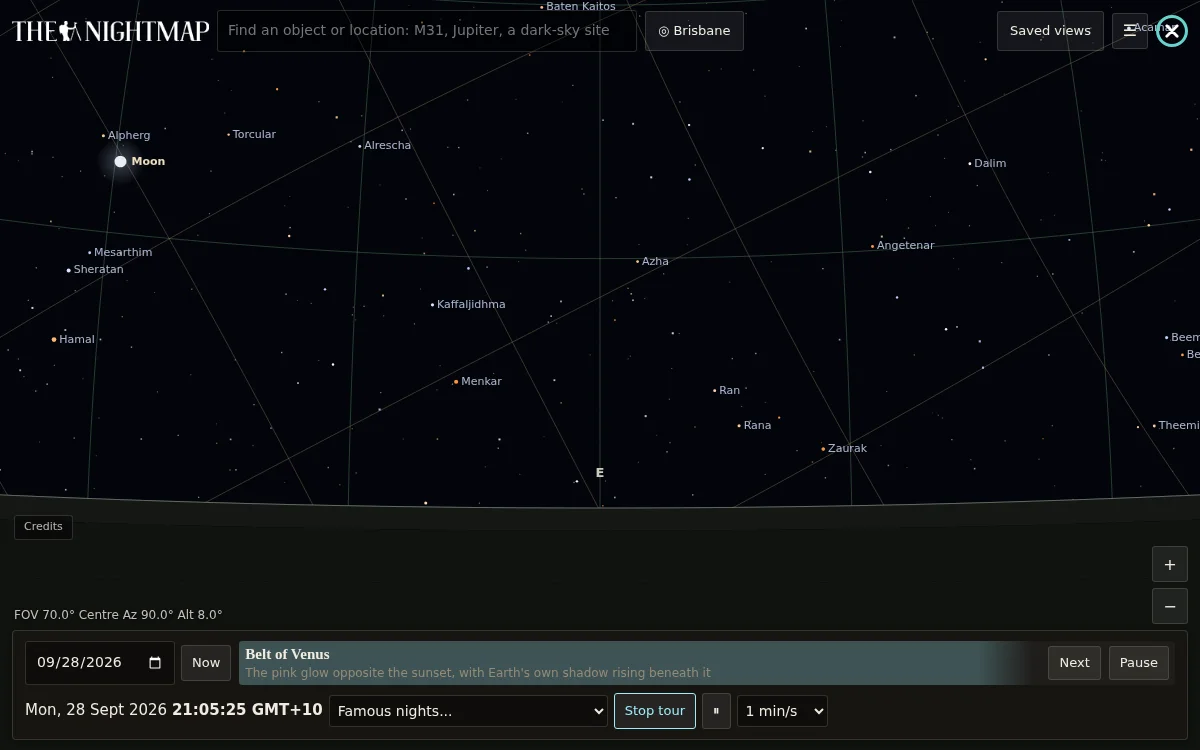
Open the Tours menu in the time bar and choose Live tour. The Planetarium then picks whatever is worth looking at right now, in real time, and flies to the next thing once you've had a good look: a satellite pass, the Milky Way's arch, a bright comet, a planet, a curated deep-sky photograph, or (away from the equator) a star-trail spin around the celestial pole. Pause freezes it in place, the clock included, and Resume carries on; Next skips ahead, and Stop tour (or dragging, zooming, or pressing Escape) ends it.
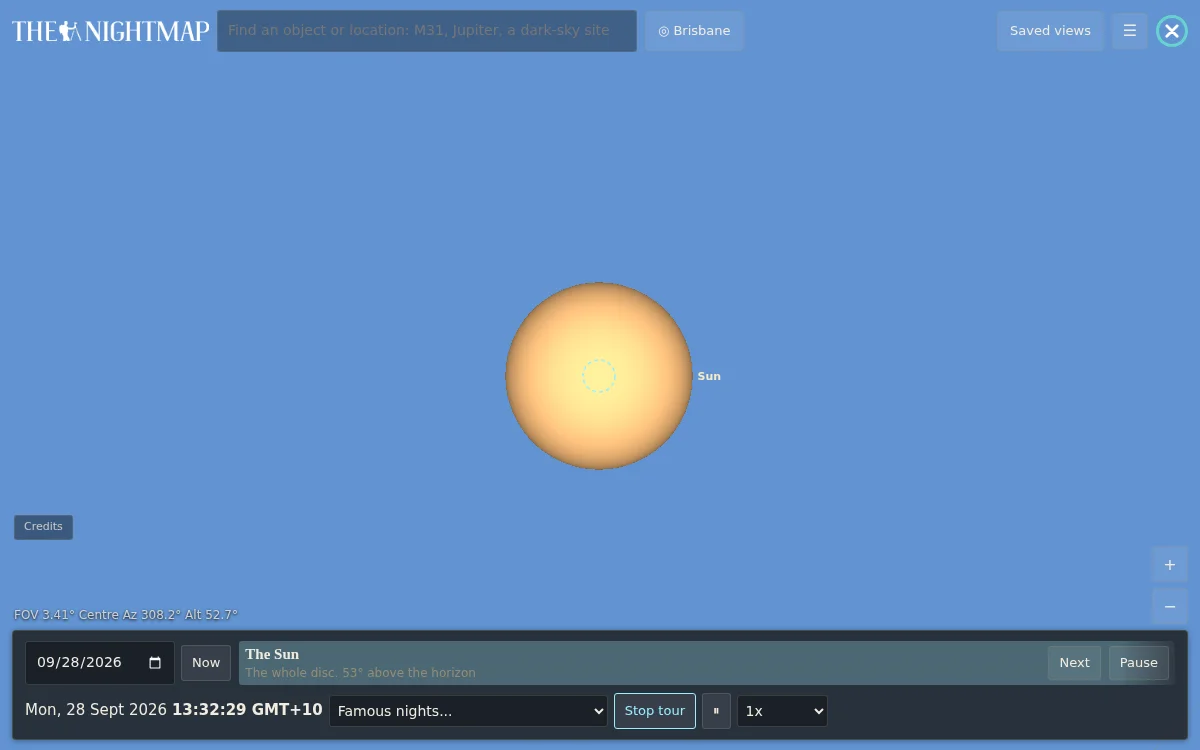
When the tour visits the Sun, the whole view turns until the Sun's own north pole points straight up the screen, so the sunspot bands sit above and below a horizontal equator. It turns back to the normal horizon-up view when the tour moves on, stops, or you take over. A script that says GOTO Sun does the same.
This is genuinely adaptive: it scores everything currently up and picks the best one, the same scoring a scripted show's defaults borrow from (see the Tour Manual). It's the right tool when you just want to see what's good tonight, with nothing to write.
Your own photos
Signed-in users can replace the default picture of any deep-sky object with their own photo of it. Select the object, then press Use my photo in its details card. The photo is private in the sense that matters day to day: it is not listed or shown anywhere, it is never part of a share link or a saved tour someone else opens unless you switch on sharing, and other people keep seeing the default picture. Behind the scenes, a photo you have switched on with Use this photo is kept on our image network so it loads quickly, at a long random address that cannot be looked up. Anyone who was given that exact address could open it, and it is taken down again when you press Use default image or delete the photo.
- Upload. Choose a JPEG, PNG or WebP. A JPEG within the size limits is sent exactly as it is; anything bigger is shrunk to fit first. Our server removes the hidden metadata, including any GPS position.
- Plate solve. The server reads the star pattern in your photo and works out exactly where in the sky it points, how big it is and how it is rotated. This runs on our own server, so your photo is not sent to anyone else. It usually takes well under a minute.
- Preview. The Planetarium flies to the object with your photo laid over the stars. If it lines up, press Use this photo. If not, press Discard.
You can switch back with Use default image at any time, replace the photo, or delete it.
Photo limits
| Photos per account | 8, one per deep-sky object. Uploading again for the same object replaces the old photo. |
|---|---|
| Total storage | 150 MB across all your photos. These two limits are the standard allowance; if you have been given a higher one, your account uses that instead. |
| Size of one upload | Up to 24 MB after your browser has prepared it. A JPEG under that goes up untouched. A bigger one, or a PNG or WebP, is shrunk to fit (see the next row) and re-saved as a JPEG under 24 MB. If it still will not fit, it is refused. |
| Picture size | At least 400 pixels on each side. Anything over 6000 pixels on the long edge, or over 24 megapixels, is scaled down to fit. What is kept is what is shown, at full resolution when you zoom in. |
| File types | JPEG, PNG or WebP. Your browser saves the version it sends as a high-quality JPEG (95% where the size allows), and our server keeps it as it arrives, removing only the hidden metadata, so your photo is not compressed a second time. |
| Uploads per day | Up to 12 in a day. |
| Field of view | From about half a degree across up to the whole sky. Narrower fields will not solve. |
If you hit a limit, delete one you no longer use, or replace an existing one. EXIF data, including GPS positions, is always removed.
What solves well
- Stars. The solver matches stars, not the nebula, so the photo needs a reasonable scatter of them. A stacked, stretched image works best.
- Undistorted. Rotation and cropping are fine, but heavy lens distortion, strong vignetting corrections or a mosaic stitched with warping can stop a match. A rectilinear lens or a telescope image is ideal.
- Not mirrored and not annotated. A mirrored image is rejected, so flip it back first. Remove labels, grids and star markers drawn over the stars.
- Field of view. Fields from about half a degree up (roughly a 14 mm lens to a small telescope) are supported. Much narrower fields, such as a single planetary or galaxy close-up at long focal length, will not solve.
If a photo fails, the card says so and you can try another. Nothing is shown from a failed photo.
Captured Cosmos: a show of your photos
Once you are using at least one of your own photos in place of a default picture (see above), the Tours menu gains two entries under Guided shows: Captured Cosmos (my photos) and Captured Cosmos: edit script.
- Captured Cosmos (my photos) writes and plays a cinematic show of your photos. Nothing needs saving first.
- Captured Cosmos: edit script writes the same show into the script editor without playing it, so you can read it, change it, press Run, and Save it as one of your Tours like any other script. It is offered as "Captured Cosmos (my copy)", and a saved copy is fixed: it does not follow your photos when you add or remove one, so use the menu entry for the live version.
For each photo it searches the coming months for the best dark night at your current location: the object high in the sky, the Moon out of the way and the object clear of the terrain. Then it gives that photo one scene, so you see where each object lives in the sky as you fly into it and back out again:
- The object in the real sky at a wide field, captioned with the night, how high it stands and which way to look.
- A push in to frame your photograph, placed on the sky by its own stars.
- A short time-lapse, so the sky turns while your photo stays true to the stars.
- A long pull back, all the way out to the whole sky and the Milky Way, with the horizon and your local terrain in view to anchor it. A caption says where the object sits (its constellation, how high, which way to look) and a ring marks it. The next scene then flies in from that big picture.
Scenes run in date order, up to 12 photos, opened by a wide title shot. Every change of night is gentle: a short one is a smooth sweep, and a change to another night or place fades out and back in. If a photo is never well placed from where you are, the show moves to the first place it can be seen well (the owner's tour locations first, then Siding Spring, La Palma, the Atacama or Kitt Peak) and says so in that scene's caption. Only a photo that is not up well anywhere in the next eight months is skipped, and the banner says which. The show repeats until you press Stop tour. The script it writes is ordinary Tour DSL (see the Tour Manual), so its DATE, JUMP, ZOOM and TIMELAPSE lines can be changed freely, and TOUR can replace the REPEAT at the end. Change your location first to plan the show for somewhere else.
On a shared Planetarium page, visitors get a Play Captured Cosmos button that runs the same show for the owner's shared photos, and the link ?event=capturedcosmos starts it on load.
Guided shows
The Tours menu in the time bar has a Guided shows group. Each one writes a show for you and plays it, so there is nothing to set up.
- What's On Tonight (or open
?event=tonight) plays the Belt of Venus at dusk, a Polar Alignment star-trail spin, then a handful of the night's best targets in the order they actually happen: planets, deep-sky objects, comets, satellite passes, plus any conjunction or Jupiter-moon event tonight. - What's Up This Month and What's Up Next Month (
?event=month) walk through the month's events in date order: Milky Way core windows, oppositions, conjunctions, satellite passes, bright comets, meteor showers, eclipses and deep-sky compositions that stand clear of your local terrain. - Captured Cosmos appears once you are using your own photos (see above).
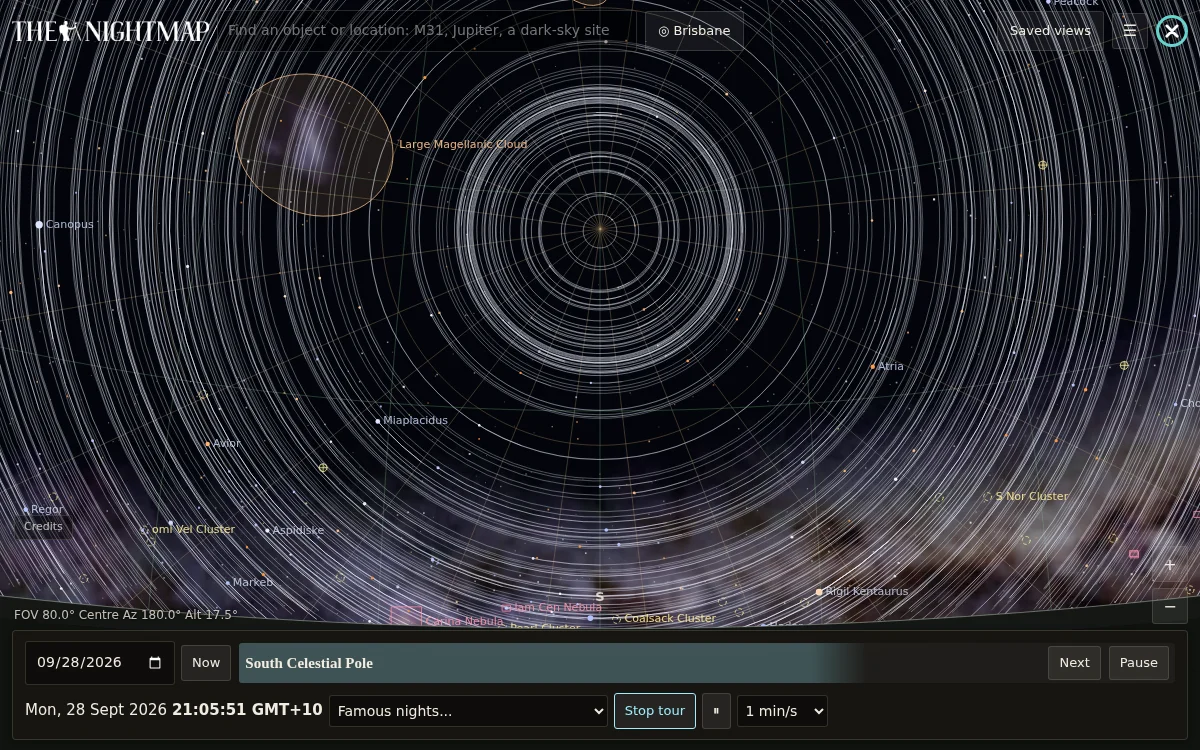
Every guided show is an ordinary script written in the Tour DSL. Open the Script editor while one plays to read exactly what it is doing, then copy the parts you like. Guided shows deliberately leave out the zodiacal light, which needs a genuinely dark site and is drawn automatically whenever conditions allow.
Director mode: make a time-lapse video
Director mode lets you direct a time-lapse without writing a script. You place markers along the night: each one remembers the time, the place, where the sky is pointing, how wide it is and what is switched on. Director then runs the clock and the camera from one marker to the next, you preview it, and you can save it as a tour or export it as a video file to share. The video below was made entirely in Director mode.
Open it
Choose Director mode from the Tours menu in the time bar. A panel slides in from the left. Its Director tab on the edge slides it out of the way while you frame the sky, and back when you want the next marker.
Make a show in five steps
- Set up the first scene. Pick the place, the time and where to look, and switch on the layers you want. Press the marker button (the pin with a plus). The panel lists it as marker 1.
- Move on and add another. Change the time (drag the timeline, or use the clock), turn the sky, zoom, change the layers or the camera frame, then add marker 2. Add as many as you like.
- Set how it travels. Each marker after the first has a Speed (or a fixed length in seconds) for the stretch leading into it, an Eased or Steady camera, and a Pause here time. The clock and the camera always arrive together. The row shows how many real seconds the stretch takes.
- Preview. The play button runs the show from the marker you have highlighted (click a marker's text to highlight it), so you can check one stretch without sitting through the rest.
- Export or save it. See below.
The toolbar
| Button | What it does |
|---|---|
| Marker (pin) | Adds a marker from the sky as it is now: time, place, view, layers, camera frame and sky shape (dome or straight horizon). |
| Photo | Lists the photos of the places within 500 m of the marker, newest first, with a star on the ones that have a plate solve. Pick one to show it over the sky at that marker. |
| Title (T) | Opens a title card: a heading, a line and a sub heading, and how long it stays. |
| Phone (rectangle) | Shows a dotted 9:16 frame on the sky with the rest dimmed. See "Making a video for phones" below. |
| Play, Stop | Preview from the highlighted marker, and stop. |
| Video camera | Exports the whole show as a video file. |
| Disc | Saves the show as one of your tours, named after the title card heading (signed in). A tour with that name is replaced after you confirm. |
| Folder | Loads markers back from a script (the script editor's text, or what is on your clipboard). |
| Code (< >) | Opens the markers as a script in the script editor, for signed-in users. |
| Copy, Bin | Copies the script, and removes every marker. |
On each marker
- Name it so a long show stays readable. The name is shown as the caption while that marker plays.
- Show puts the sky back as it was at that marker, Update replaces it with the sky as it is now, and Copy, Up, Down and Delete do what they say.
- Go to or Follow an object: select a planet, the Sun or Moon, a deep-sky object, a comet or a satellite in the sky, press the target button on the marker, then choose how to aim. Go to arrives centred on the object as it is at the marker's time, and the camera tracks it on the way. Follow also keeps it centred through the pause and into the next stretch.
- Photo shows the picture over the sky for a number of seconds you choose. It fades in, and fades out when the next marker starts to move (or after its time, on the last marker). Tick Sky labels on a plate-solved photo to draw its stars, constellations and deep-sky names over it. The photographer's credit is shown under the picture.
Making a video for phones
Switch on the phone frame to see exactly what a vertical video will capture. The sky outside the dotted outline is dimmed, and the title card, the photo card and the logo are laid out inside the frame, with headings wrapping to fit it. Frame the shots to suit it. With the frame on, Export makes a mobile 9:16 video (1080 x 1920) for reels and stories, with no timeline and the logo centred at the bottom. With it off, Export makes a widescreen video of the whole window, with a small clock and timeline and the logo at the bottom right.
The video is made in your browser while the show plays, then saved straight to your downloads: nothing is uploaded and nothing is kept on our servers. It begins at your first marker, so the setting-up never appears in it.
Keep the tab in front while it records. A browser stops drawing a tab you cannot see, so switching away pauses the show, and it carries on when you return. Press Escape to stop early and keep what has been recorded. MP4 files need a recent Chrome, Edge or Safari; other browsers save a WebM file instead.
Under the hood
Everything Director does is written as an ordinary tour script: a KEY line for each marker and an optional TITLE line, so you can open the markers as a script, edit it by hand, save it, share its link, or load it back into Director later. Both commands are described in the Planetarium Tour Manual.
Writing your own tours
Signed-in users can write a tour of their own: a short plain-text script that says exactly where to look, when, and for how long. Choose Script editor from the Tours menu in the time bar, type or paste a script, and press Run.
DATE 2028-07-22
JUMP dusk
NOTE "The Moon on eclipse night"
GOTO Moon
- Save keeps the script as a named Tour on your account. Your Tours appear on your Profile and sync across devices.
- Copy link gives an address that plays it for anyone, signed in or not.
- While it plays, Pause, Next and Stop tour work as in the live tour.
The full reference is the Planetarium Tour Manual. It defines the language, documents every command with its options and examples, and includes complete worked programs, including one that follows the Andromeda Galaxy from rising to setting and loops.