The Nightmap
FOV Planner guide
The FOV Planner is a camera simulator built into the map: aim a virtual camera at a location, see the terrain and Milky Way through your actual lens, and print the result as a Nightscape Plan you can take out into the field. This guide walks through the whole flow, from the map's onboarding screen to a finished, printable plan, using the Barney Tree location as the example throughout.
Getting there
The first time you open thenightmap.com, a welcome panel introduces the map and links to the FAQ, Contributors, Tools and a few featured guides.
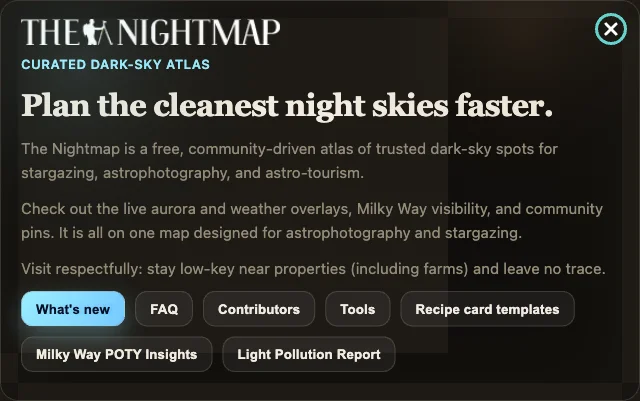
Once you've visited before, this panel doesn't reappear automatically. If you want it back, or you just want a quick way back to Tools, click the small Nightmap logo in the bottom-right corner of the map. That reopens the same welcome panel from anywhere.
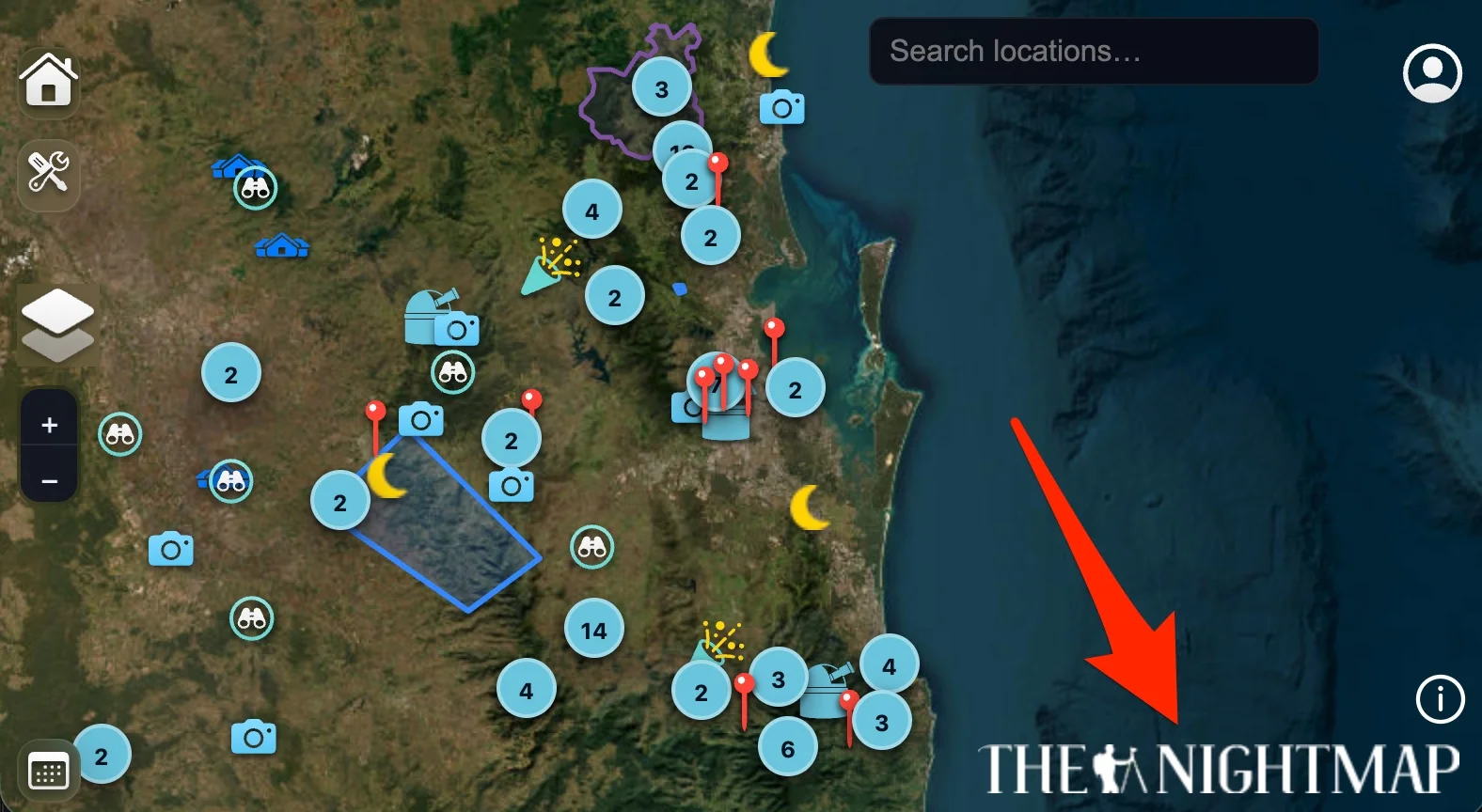
Why this matters: the welcome panel is also the quickest route to Tools, and Tools is where StarLock lives, which is the next step below. If you've dismissed the panel and forgotten where Tools is, the logo click is the shortcut.
Set up your camera in StarLock
From the welcome panel (or the wrench icon on the map's left edge), click Tools, then open StarLock.
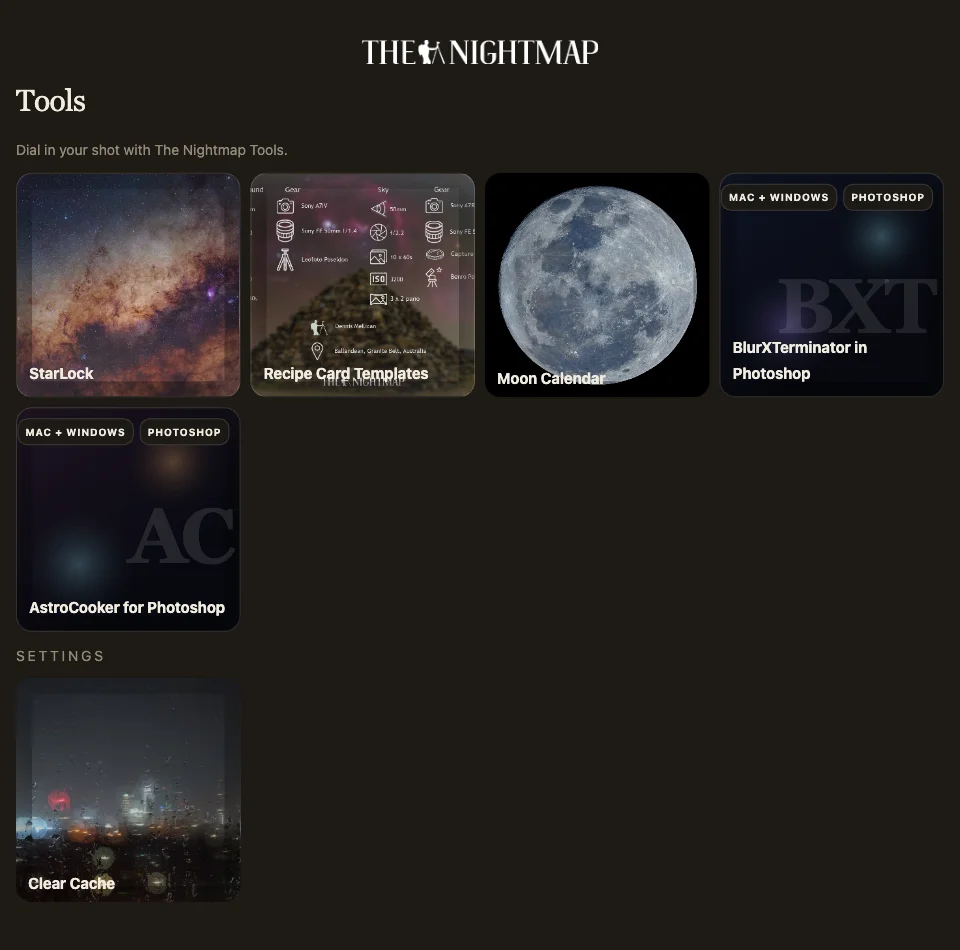
StarLock calculates the maximum shutter speed you can use before stars visibly trail, using the NPF rule. Pick your camera's make and model, and it fills in your sensor's pixel pitch and crop factor automatically. Set your aperture to match what you'll actually shoot at.
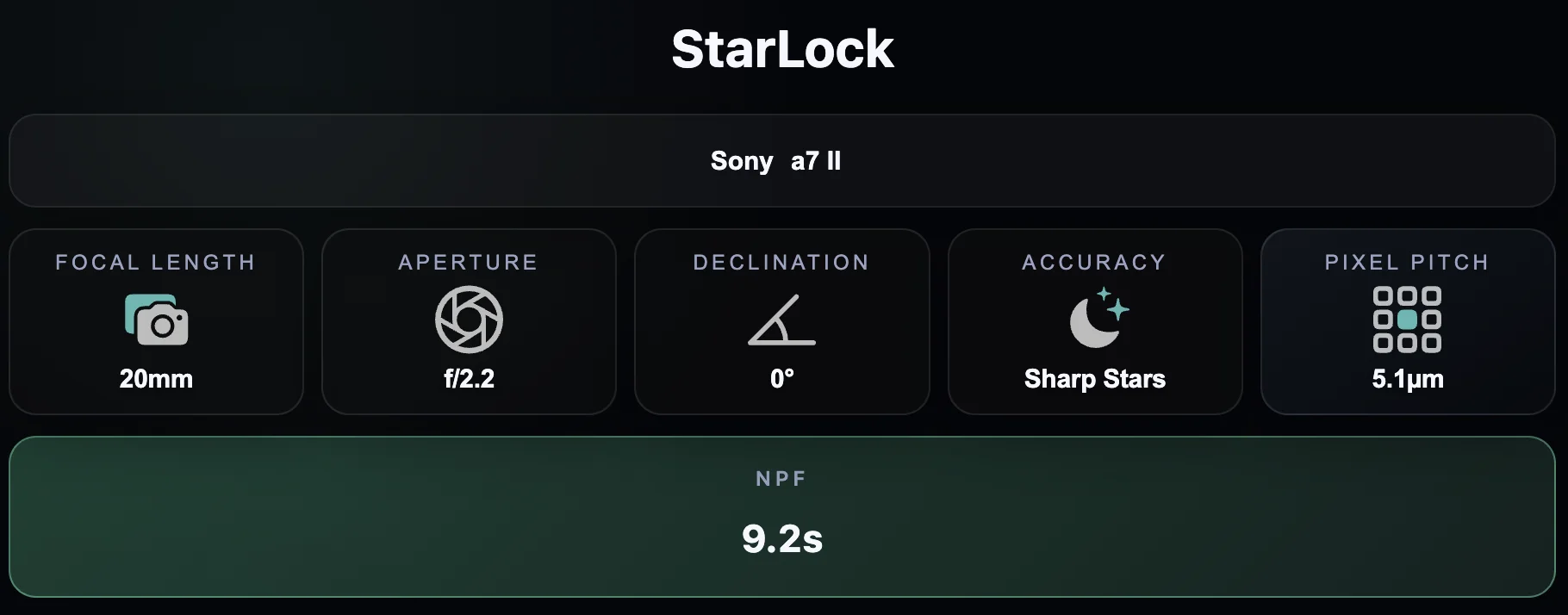
Why this matters: this is the important, easy-to-miss connection. The camera you set up here in StarLock is exactly what feeds the Untracked settings section of every Nightscape Plan you print later: your aperture, pixel pitch and crop factor all carry straight through into the NPF rule, 500 rule and hyperfocal distance shown on the plan. Set it up once here, and every location's plan uses it automatically.
Open the FOV Planner
Back on the map, search for or click a location's pin to open its popup, then click FOV Planner. This example uses Barney Tree, a gravel road leading up to a large gum tree with Mount Barney National Park behind it.
The map switches to satellite view and zooms in on the location, with the FOV Planner's Field of view panel open alongside a cone showing your camera's current aim.
Dial in your camera settings
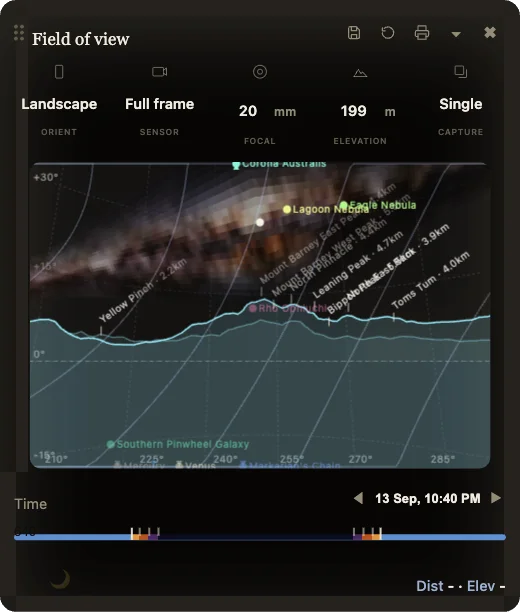
The row of stat tiles across the top of the panel controls the shot itself, independently of whatever's saved in StarLock:
- Orient: toggles Landscape and Portrait.
- Sensor: Full frame, APS-C or Micro Four Thirds, which changes the framed field of view.
- Focal: your lens's focal length in millimetres. This is the one setting shared with the Nightscape Plan's NPF and 500 rule shutter speeds; StarLock's own focal length is not used for those, only its aperture, pixel pitch and crop factor are.
- Elevation: the camera's height above the ground, usually filled in automatically from terrain data.
- Capture: Single frame or Panorama. Panorama adds width, height and overlap controls, and previews each planned frame as a numbered vertical strip.
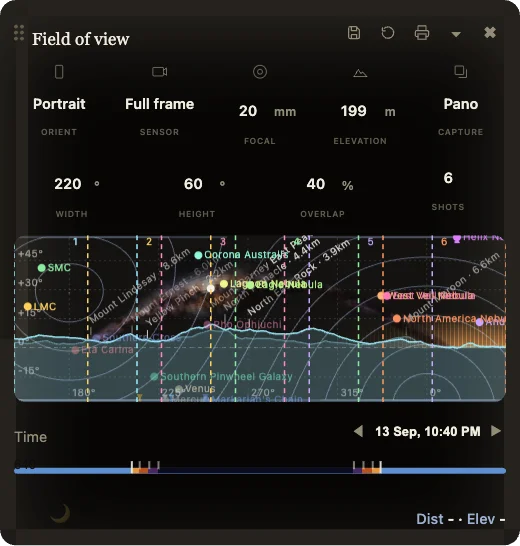
For Barney Tree, switching to Portrait and Panorama at a 220° width with 40% overlap plans a sweeping arch across Mount Barney National Park:
Aim your shot
Drag directly on the terrain/Milky Way simulation to pan and tilt the camera; the terrain, deep-sky labels and Milky Way all reproject live as you drag. You can also drag the handle on the map itself, which rotates the whole framing cone around the pin.
The Dist and Elev controls at the bottom-right of the simulation adjust how far out the terrain sweep reaches and let you override the camera's elevation if the automatic value is wrong for your exact standing spot.
For this example, the camera is aimed at bearing 276° (West) with a +15° tilt, which is what puts the Milky Way's arch and Mount Barney's peaks where they are in the simulation above.
Terrain accuracy depends on the pin: curated locations already on the map are pre-warmed with high-resolution (30m) terrain data, so their ridgelines and silhouettes render sharp and immediately. A pin dropped somewhere uncurated falls back to a coarser 250m global dataset until someone requests better coverage for it, which can smooth over real features like notches or double peaks, and the first terrain fetch for a new area takes longer while it downloads. If you're planning a shot somewhere that isn't yet a Nightmap location, consider submitting it: curated pins get accurate ridgelines and fast, cached loading for everyone who plans a shot there after you.
Choose your time
The Time slider under the simulation moves through the currently selected night, and the day arrows either side of the date step to a different night entirely. Sun, Moon, Milky Way Core position, and the terrain's own light-pollution glow all update live as you move it, which is how you find the moment the Core clears the ridge, or check how far the Moon is from setting before your session starts.
Why this matters: whatever night and time the slider is showing is exactly what ends up in your Nightscape Plan: the same sunset, twilight and rise/set times, and the same simulated view in the printed image. Get the time right here before printing.
Download your Nightscape Plan
The printer icon in the panel's header (next to Save and Load) builds a full-resolution, printable Nightscape Plan for the exact camera setup and time currently shown, and opens it in a new tab.
That new tab has its own Print / Save as PDF button, which uses your browser's normal print dialog, so choose Save as PDF there to get a PDF file, or send it straight to a printer.
Reading your Nightscape Plan
The plan opens with the location's name, coordinates, description, and a link back to the location's own page, plus Google Maps and Waze directions. Below that is the camera simulator's own view, captioned with the exact direction, bearing and time it represents.
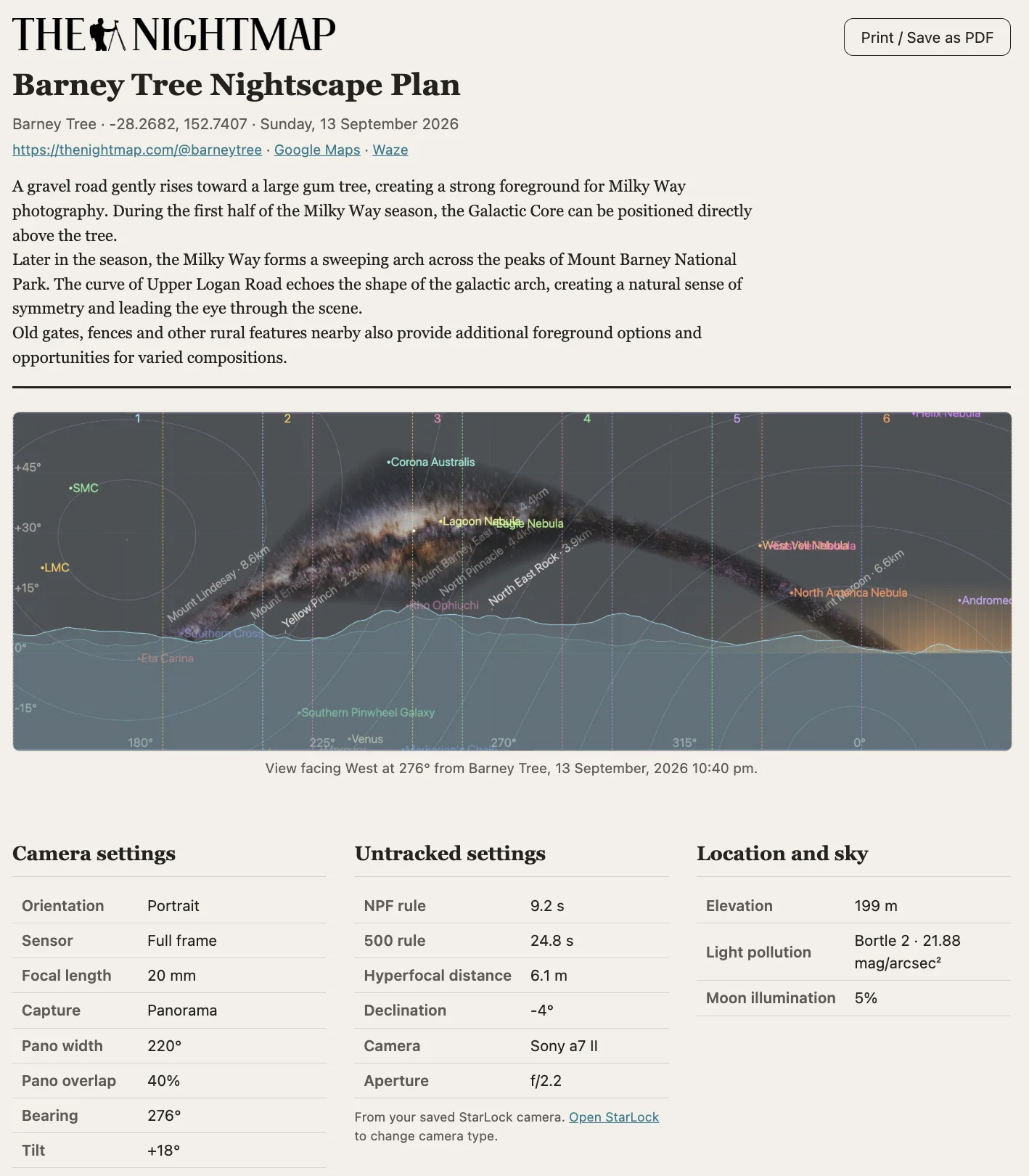
Three tables sit side by side under the image:
| Camera settings | Orientation, sensor, focal length, capture mode (and pano width/overlap), bearing and tilt: everything set in the FOV Planner panel itself. |
|---|---|
| Untracked settings | NPF rule and 500 rule shutter speeds for shooting without a star tracker, plus a hyperfocal distance and the declination this exact shot is pointed at. These use the camera body saved in StarLock (aperture, pixel pitch, crop factor) combined with this shot's own focal length. A note links back to StarLock if you need to change camera type. |
| Location and sky | Elevation, a light-pollution reading (Bortle class and mag/arcsec²) sampled at the camera's own position, and the Moon's illumination percentage for the night shown. |
Focusing at the hyperfocal distance: the hyperfocal distance is the closest focus point that still keeps everything from there out to infinity acceptably sharp, so it's a good starting point for a wide, single-exposure nightscape shot. In practice, focus a little beyond it rather than exactly on it: focusing precisely at the calculated distance leaves no margin, and small errors (focus breathing, a slightly-off manual pull) can land you just short of sharp infinity focus. Hyperfocal focusing is less useful if you're planning a separate, closer-focused foreground exposure to blend in later. In that case, focus the foreground shot on the foreground itself rather than at the hyperfocal distance.
Further down, two more tables cover the timing for the session:
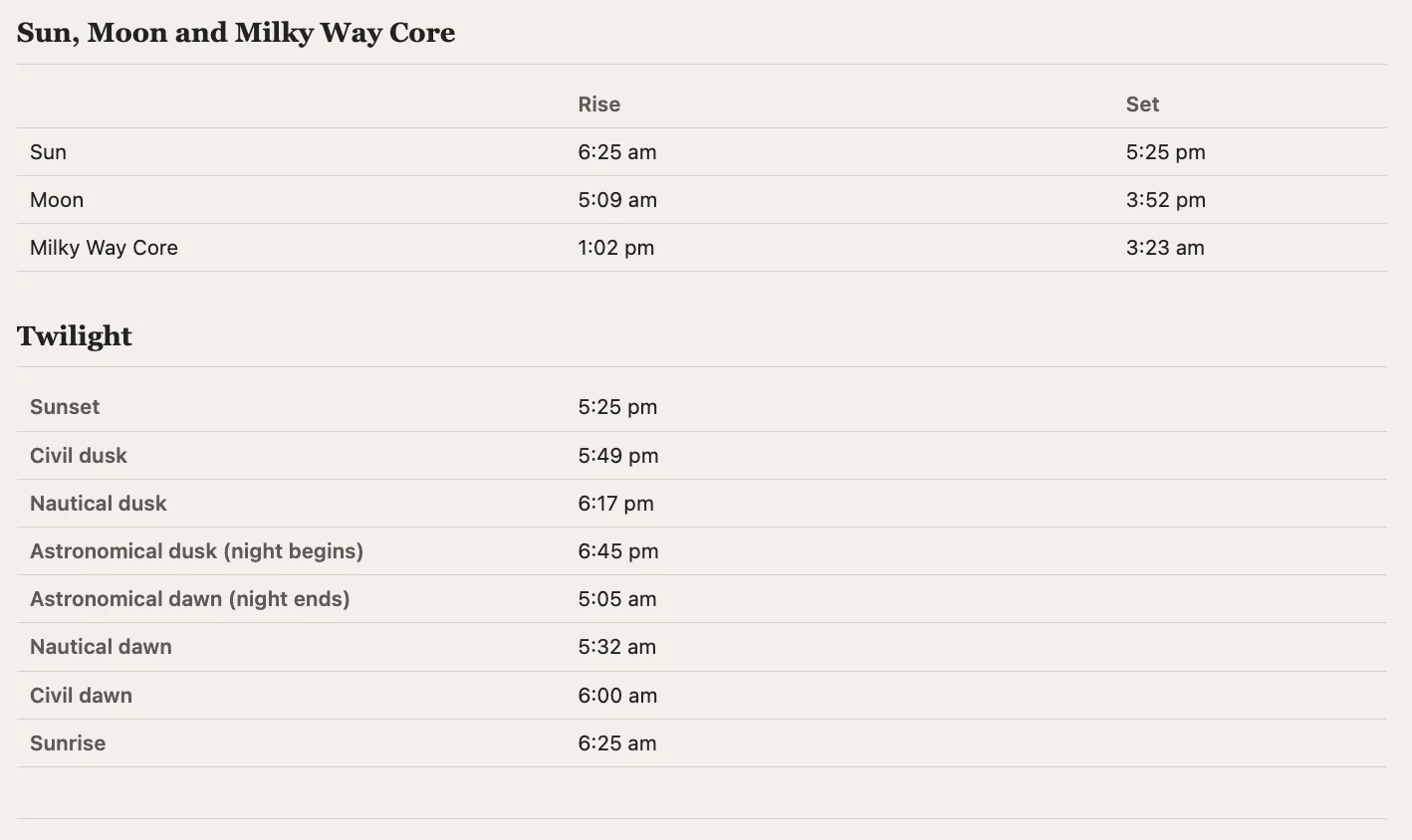
| Sun, Moon and Milky Way Core | Rise and set times for all three, so you can plan around moonrise or a Core that hasn't cleared the horizon yet. |
|---|---|
| Twilight | Sunset through civil, nautical and astronomical dusk, then the same in reverse to sunrise. Astronomical dusk is when true night begins, astronomical dawn when it ends. |
Why this matters: a Nightscape Plan is meant to travel with you, on paper or as a PDF on your phone, without needing a live connection back to the map. Everything you'd otherwise have to look up separately (camera settings, safe shutter speed, light pollution, and the night's full timing) is on the one page.
The real result
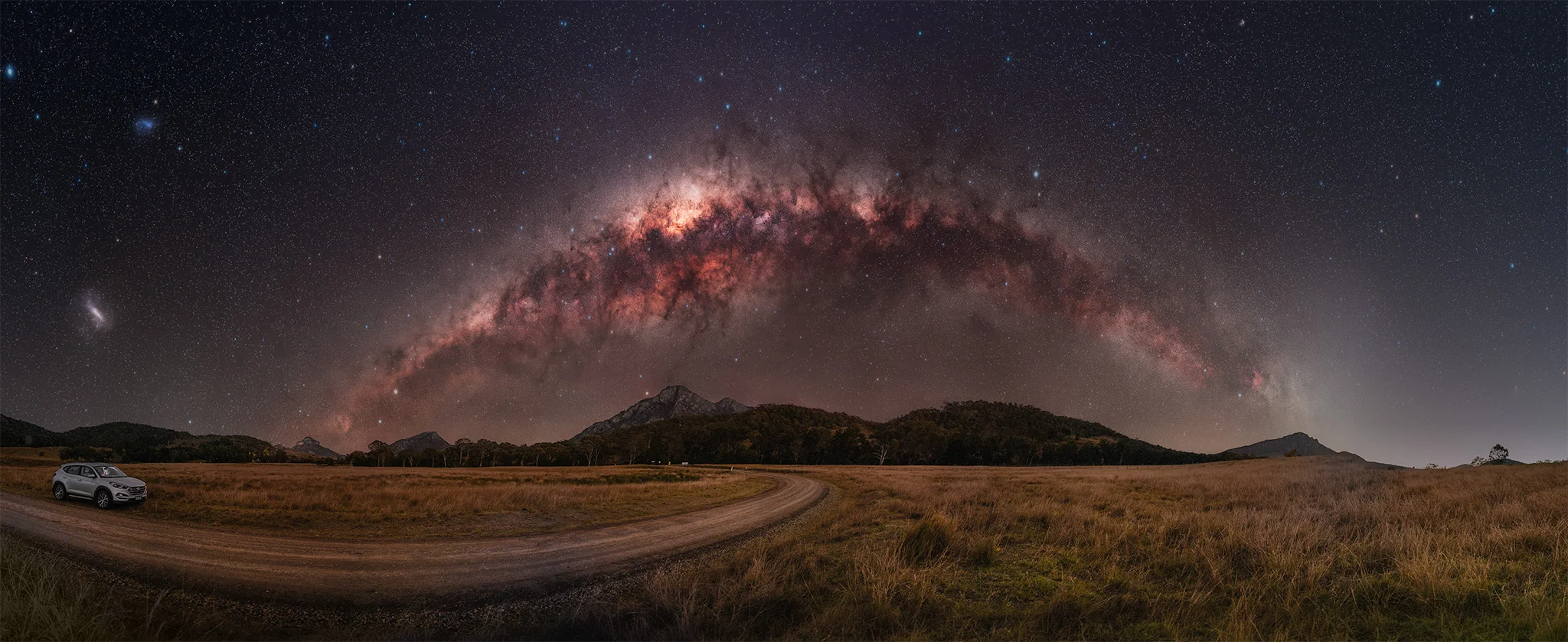
Here's the actual photograph from this Barney Tree session, taken with the settings this plan laid out: a 220° portrait panorama at 20mm, f/2.2, aimed West at 276°. The Milky Way's arch and its position over Mount Barney National Park match the FOV Planner's simulation closely.