

 Free community bridges · macOS + Windows
BlurXTerminator
for Photoshop
Run the official RC-Astro CLI from Photoshop, then bring a cleaner, editable result back into your nightscape document.
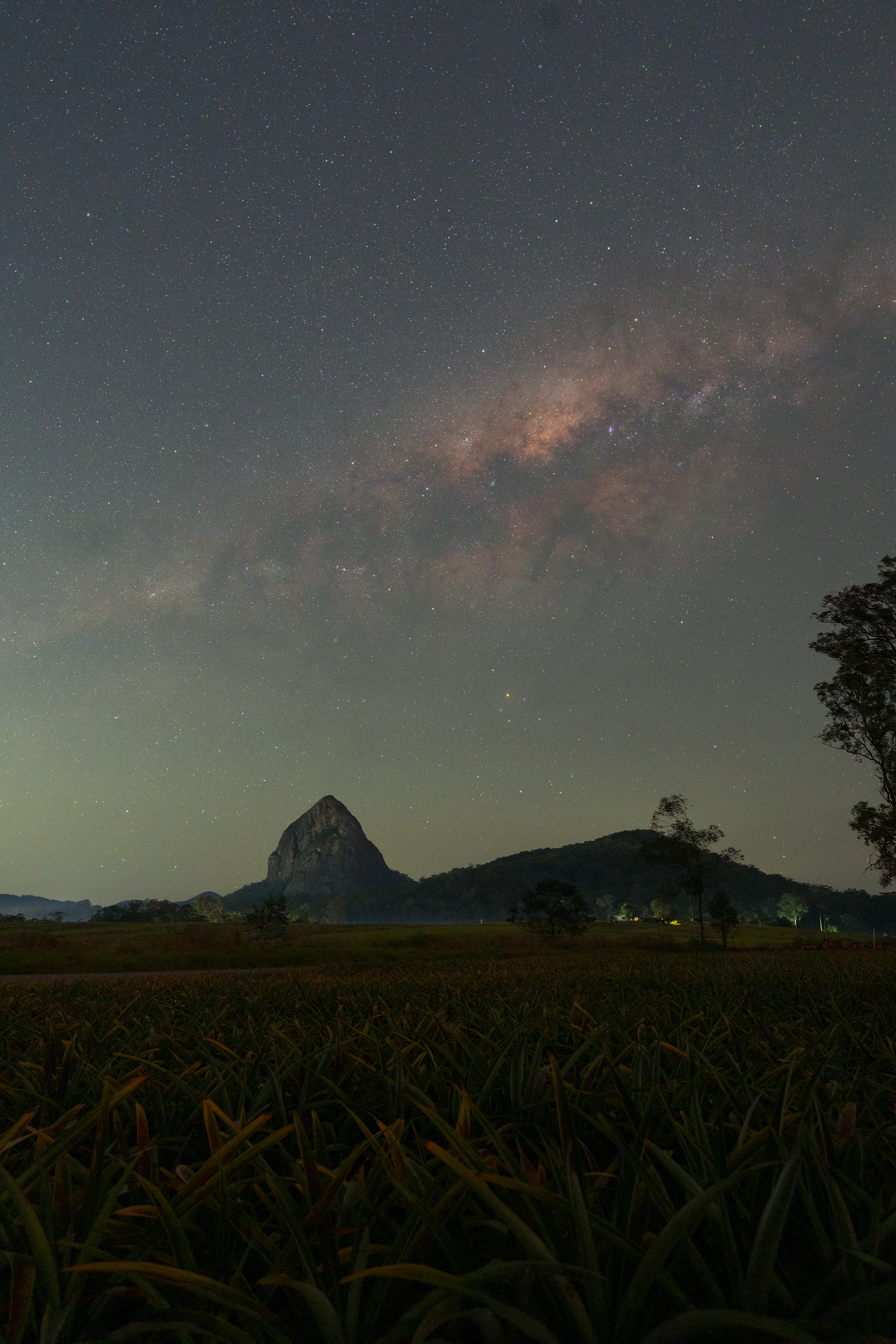
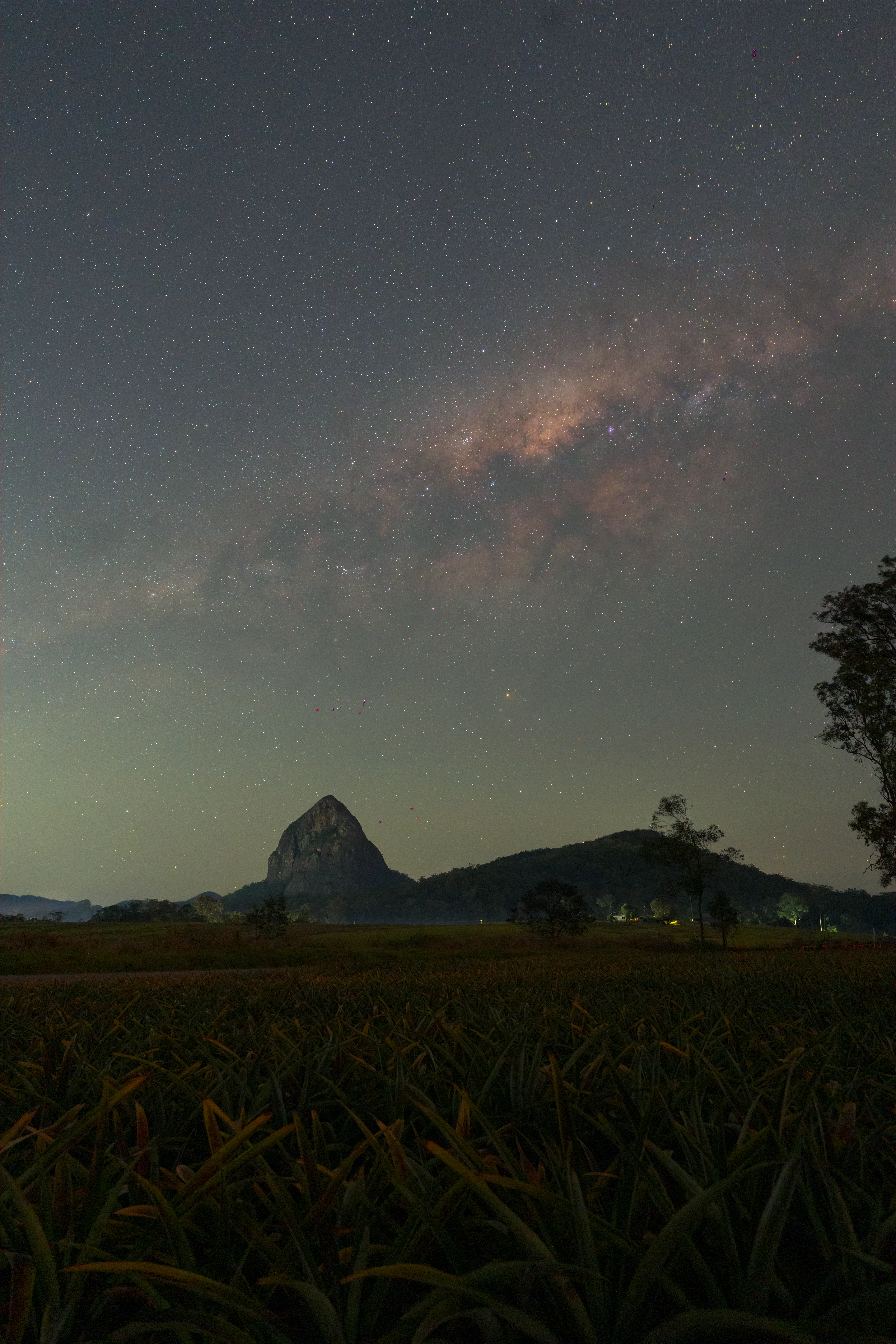
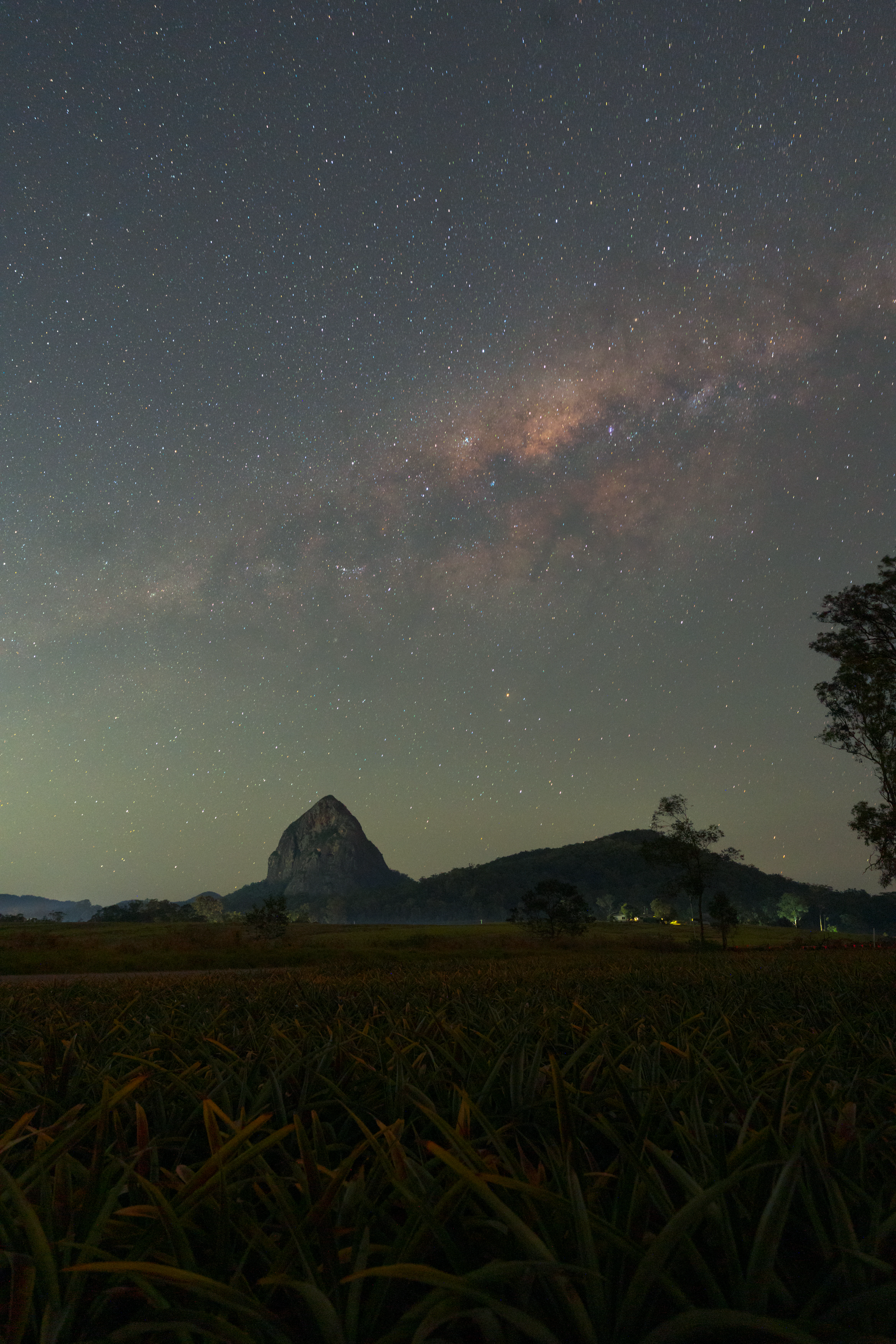
Compare Raw, ML4 and ML5
Drag the dividers to compare the same nightscape unprocessed, with ML4 and with ML5. Zoom to 200% to see star shapes and the ML4 colour blemishes, and drag the image to look around.
Why there is no official Photoshop versionImportant limitations of this unofficial workflow
BlurXTerminator is a deconvolution tool, not a sharpening filter, and RC-Astro says it needs linear data. That is why it ships for PixInsight and as a stand-alone CLI rather than as a Photoshop plug-in.
This script is a bridge to the CLI. It is handy for nightscapes, but it does not make a Photoshop document linear. The script shows this reminder before processing, and you can choose Don’t show this warning again.
For deep-sky data, run BlurXTerminator in PixInsight, Siril or Seti Astro Suite Pro before stretching. See the product page and technical manual.
Before you install
- Sign in to your RC-Astro account.
- Download and install the stand-alone CLI for your operating system from your account.
- Activate BlurXTerminator using RC-Astro’s supplied activation command.
- Update the CLI, then download all models available for your licensed products using the commands below.
- Optional: confirm the CLI works by opening Terminal or Command Prompt and running
rc-astro bxt --license.
Mac:
/Applications/RC-Astro/CLI/rc-astro update --install
/Applications/RC-Astro/CLI/rc-astro download-models --force
Windows:
"C:\Program Files\RC-Astro\CLI\rc-astro.exe" update --install
"C:\Program Files\RC-Astro\CLI\rc-astro.exe" download-models --force
The second command downloads every model for your activated products. The script picks up new models automatically. Restart Photoshop after updating the CLI or models.
Existing BlurXTerminator licences work with the stand-alone CLI. See RC-Astro’s installation guide for requirements and support.
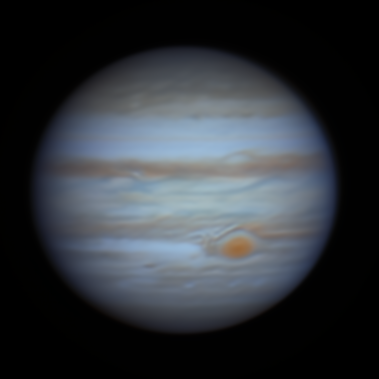
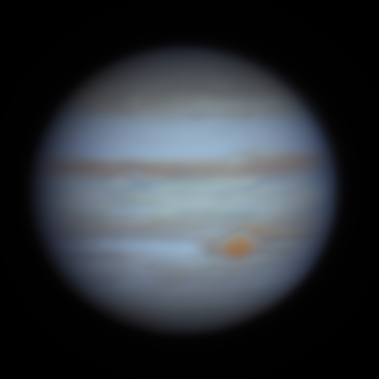
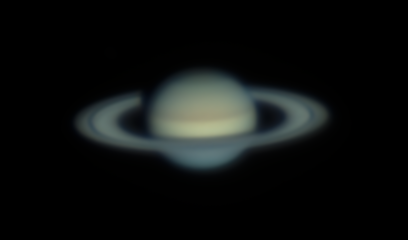
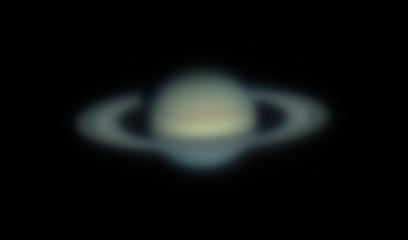
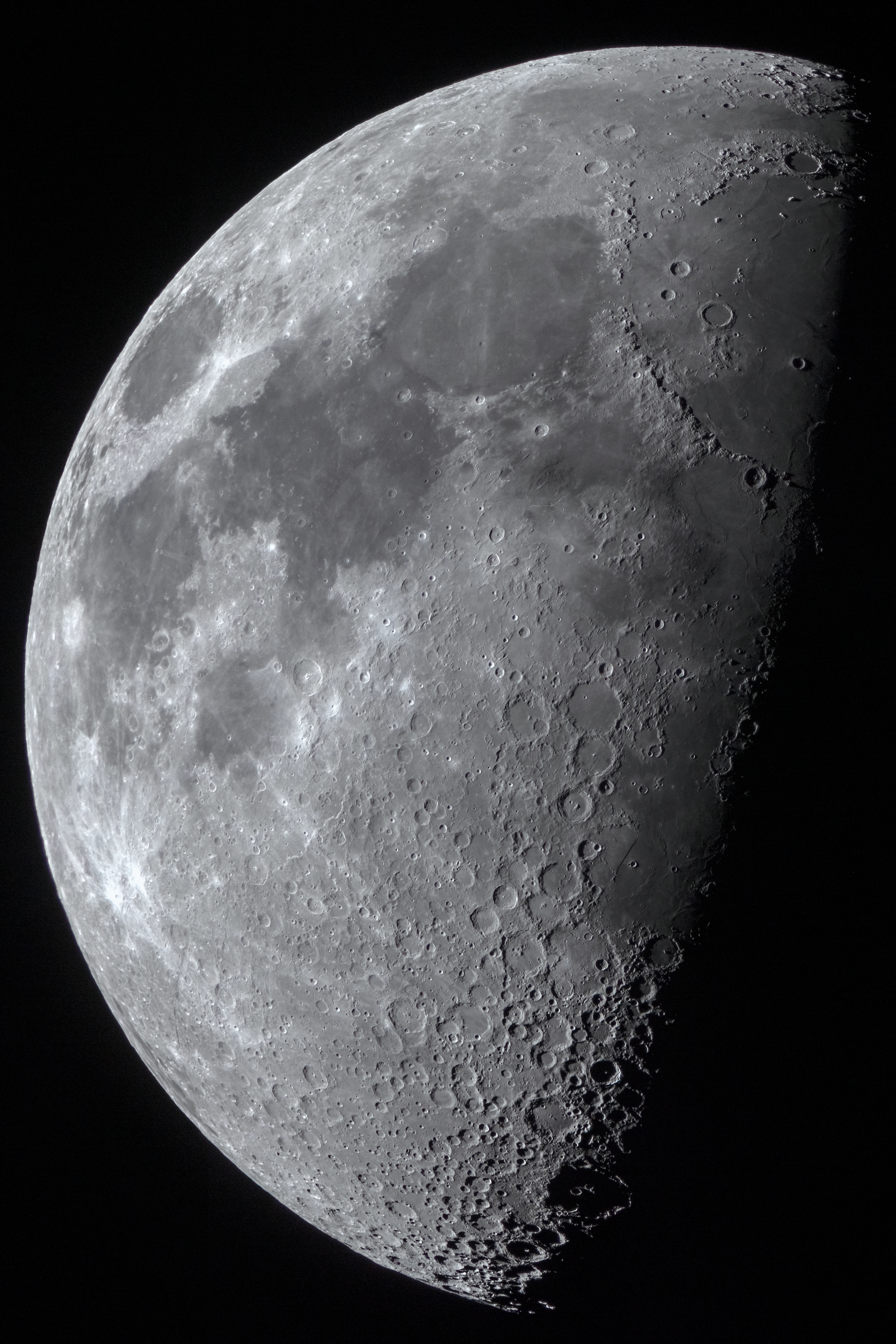
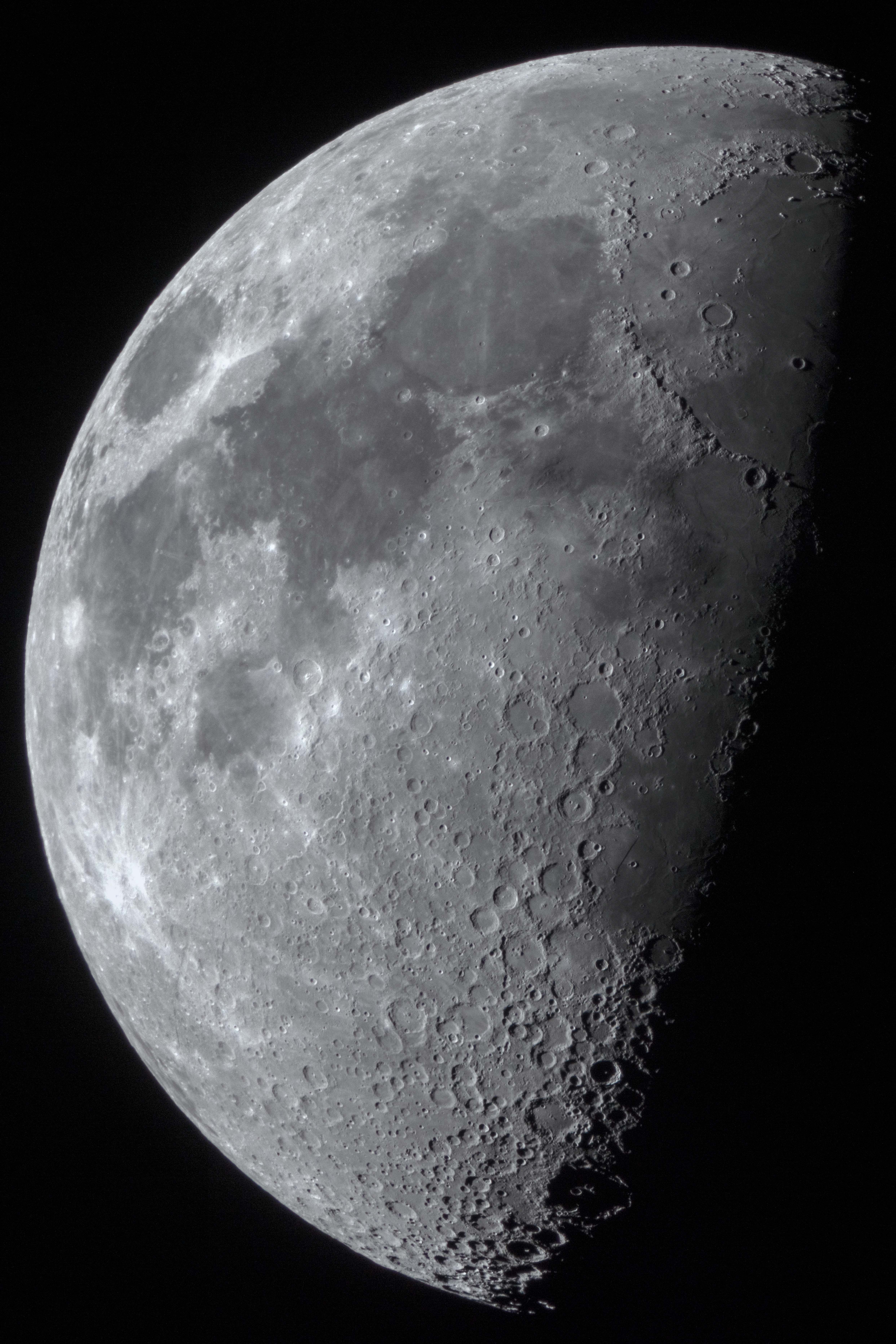
ML5 Lunar / Planetary mode
For Moon and planet images, select ML5 and enable Lunar / Planetary mode (ML5+) in the Options panel. The script switches off the star settings this mode does not use, and remembers its own values separately from your normal settings.
| Control | Starting value | Guidance |
|---|---|---|
| Nonstellar Diameter | 2.5 px | Increase cautiously for a softer or more heavily blurred stack. |
| Sharpen Nonstellar | 0.30 | Adjust in small steps and watch the limb and crater rims for ringing. |
| Tile Overlap | 0.20 | Usually fine as is. |
Start with a clean, lightly processed stack and inspect at 100%. Planets often suit a gentler Sharpen Nonstellar of 0.15 to 0.30. See RC-Astro’s ML5 comparison for more.
View Lunar / Planetary examplesOriginal versus ML5, with zoom and pan controls
Drag each divider to compare the original with ML5. Zoom in and drag the image to look around.
Install on MacFour steps for adding the script to Photoshop
Download and extract the Mac package
Download the Mac ZIP and open it. It contains the script and a small helper. Keep the two files together.
Open Photoshop’s Scripts folder
In Finder, open your Photoshop folder in Applications, then Presets and Scripts.
/Applications/Adobe Photoshop [version]/Presets/Scripts/Copy and authenticate
Drag both files into the Scripts folder. macOS will ask for your password or Touch ID.
Restart Photoshop
Quit and reopen Photoshop. Open an RGB or grayscale image, then choose:
File → Scripts → RC-Astro-BlurXTerminator-PhotoshopInstall on WindowsFour steps for adding the script to Photoshop
Download and extract the Windows package
Download the Windows ZIP and extract it. It contains the script and a small helper. Keep the two files together.
Open Photoshop’s Scripts folder
In File Explorer, open your Photoshop folder, then Presets and Scripts.
C:\Program Files\Adobe\Adobe Photoshop [version]\Presets\Scripts\Copy with administrator permission
Copy both files into the Scripts folder and approve the administrator prompt if one appears.
Restart Photoshop
Quit and reopen Photoshop. Open an RGB or grayscale image, then choose:
File → Scripts → RC-Astro-BlurXTerminator-Photoshop-WindowsWhat the bridge doesA quick overview
The script sends a temporary copy of your image to the RC-Astro CLI and returns the result as a new layer named for the model, such as BlurXT ML5. Your existing layers are not changed, and temporary files are cleaned up. With ML4, it also patches that model’s colour blemishes using an editable mask.
The dialog remembers your settings between runs. The script checks for its own updates and never installs one without asking. It does not update the RC-Astro CLI.
Processing guidance
Video examples
Choose an example to open it in a larger video player.
Open the RAW as a 16-bit image
In Camera Raw, click the underlined workflow link at the bottom of the window. Set Depth to 16 Bits/Channel and Output Sharpening to None, then open the image. The document tab should show RGB/16. Converting to 16-bit after opening does not bring back the lost data.
Optional: make a linear camera profileA flatter Camera Raw starting point
Adobe’s camera profiles add a contrast curve before BlurXTerminator ever sees the image. A linear profile removes that curve, giving a darker, flatter starting point that can reduce artifacts around stars.
Ready-made option: Good Light’s Linear Profile Repository has free profiles for many cameras. For an astro-modified camera, make your own instead, as its colour response differs from the stock model.
To make one, you need Adobe’s free DNG Converter and DNG Profile Editor. The Profile Editor is old but still works.
- Convert one RAW file from your camera to DNG with DNG Converter.
- Open the DNG in DNG Profile Editor.
- On the Tone Curve tab, change Base Tone Curve to Linear.
- Choose File > Export Profile and give it a clear name, such as
Camera Model Linear. - Restart Photoshop, open a RAW from the same camera model, and pick the profile in Camera Raw’s Profile Browser.
The profile works on your original RAW files, but only for the camera model it was made from.
Keep the Camera Raw conversion gentle
- Use the linear profile, 16 Bits/Channel, ProPhoto RGB and no output sharpening.
- Leave tone, texture, clarity and dehaze sliders neutral where you can.
- Skip AI denoise, sharpening and heavy adjustments until after the bridge.
- White balance, lens corrections and chromatic aberration removal are fine.
Expect a darker, flatter image than Adobe Color gives. This is closer to what BlurXTerminator expects, but it is still not true linear data, so it will not guarantee an artifact-free result.
Start with Correct Only
Make your first run with Correct Only on. It fixes star shapes, such as coma and elongated stars near the edges, without shrinking stars or sharpening detail. Inspect the sky at 100%. If it looks clean, turn Correct Only off and add the other settings slowly.
| Control | Starting value | Why |
|---|---|---|
| Correct Only | On for the first test | Shows how star shapes are corrected before any sharpening. |
| Sharpen Stars | 0.05 to 0.10 | Increase if the image can take more. |
| Adjust Star Halos | 0.00 to +0.03 | A small positive value softens harsh edges and keeps bright-star colour. |
| Auto Nonstellar PSF | On | Right for any sky with stars in it. |
| Sharpen Nonstellar | 0 to 0.05 | Raise slowly while watching the Milky Way and noise. |
| Tile Overlap | 0.20 | Usually fine as is. |
Diffusion filter glow
Mist and diffusion filters such as Capture The Night add a soft halo around bright stars. BlurXTerminator treats that halo as blur and tightens it away, which can remove the look you shot for.
Enable Restore star glow on the Diffusion Filter Glow tab and the bridge adds the removed halo back as a layer named Star Glow. You keep the corrected stars and the filter’s own glow. Because the glow comes from your own frame, it looks more natural than an Orton or Camera Raw glow effect. Lower the layer’s opacity for a subtler bloom.
| Control | Starting value | Guidance |
|---|---|---|
| Restore star glow | On for filtered frames | Leave it off for frames shot without a diffusion filter, where it would only undo some of the sharpening. |
| Glow Soften | 0 px | Blurs the recovered glow slightly. Try 1 to 2 px if the halos show banding or noise. |
| Fade glow toward frame edges | On | Masks the glow so it fades out toward the corners, where BlurXTerminator also corrects lens aberrations that the glow would otherwise bring back. Paint the mask to adjust, or turn this off for stitched panoramas. |
The Star Glow layer looks black. That is expected: it only contains the halos. Hide the other layers to see it on its own.
Work in 16 bits per channel. In an 8-bit document the recovered glow can show visible rings.
If you mask the BlurXTerminator layer away from the foreground, mask the Star Glow layer to match.
If coloured blobs appear
Dark blobs with magenta, cyan or green edges usually come from hot pixels, clipped stars, colour noise, an 8-bit source or an over-stretched image. Use ML5, which avoids the blemishes ML4 produced. If ML5 still shows them, delete the layer and retry with a cleaner 16-bit source and gentler settings.
Mask the result to the sky
Mask the BlurXT layer, such as BlurXT ML5, away from trees, mountains, buildings, people and the horizon, which can turn crunchy. If the sky looks overdone, lower the layer opacity to 60 to 80%.
Dial in the settings
Once Correct Only looks clean, turn it off and adjust to suit the source.
- Noisy single exposure: Stars 0.10 to 0.20; Nonstellar 0 to 0.10.
- Tracked or stacked sky: Stars 0.20 to 0.35; Nonstellar 0.15 to 0.30.
- Dense Milky Way detail: try Nonstellar 0.15 to 0.25.
- Bright stars: try Halos +0.03 to +0.10 if sharpening creates dark rings or hard edges.
- Starless sky: turn off Auto PSF and enter the original star FWHM as the manual PSF diameter.
Run it before the heavy editing
Run the bridge before strong contrast, sharpening, noise reduction or star removal. BlurXTerminator needs the stars in place to work out the correction.
Inspect before accepting
Check the centre, corners, bright stars, the Milky Way and the horizon at 100%. Lower the sharpening if you see:
- Dark rings or flat patches around stars
- Crunchy dust lanes or mottled noise
- Unnaturally tiny or hard-edged stars
- Texture artifacts in smooth sky or foreground
Troubleshooting
The script is missing from the menu
Check the file ends in .jsx and is in the Scripts folder of the Photoshop version you run, then restart Photoshop.
The RC-Astro CLI was not found
Install the current RC-Astro stand-alone package in its default location: /Applications/RC-Astro on Mac or C:\Program Files\RC-Astro on Windows.
Licence or model errors
These come from the RC-Astro CLI. Activate BlurXTerminator and download its models as described in Before you install.
Need RC-Astro product support?
RC-Astro does not support this unofficial bridge. Reproduce the issue with the RC-Astro CLI or PixInsight first, then contact RC-Astro through the FAQ or your account. The Nightmap cannot help with licences or models.
Official RC-Astro resources
Change log
Version 1.9.2
- Diffusion Filter Glow settings now have their own tab.
- New Fade glow toward frame edges option, on by default, keeps the glow from undoing lens corrections near the corners.
- Glow Strength is removed. Adjust the Star Glow layer’s opacity instead.
- Glow Soften now defaults to 0 px.
Version 1.9.1
- Installing an update no longer asks you to restart Photoshop. The new version is used next time you run the script.
Version 1.9.0
- New Diffusion Filter Glow panel restores the star halos from mist filters such as Capture The Night.
- Added Glow Strength and Glow Soften controls.
Version 1.8.4
- Fixed model detection for Windows RC-Astro installations under Program Files.
Version 1.8.3
- Lunar / Planetary option is now available for ML5 and newer models.
- The settings dialog now includes sliders alongside its numeric controls.
- Lunar / Planetary mode sets compatible defaults and remembers its own settings.
Version 1.8.2
- Fixed the Install update button so installation begins immediately when selected.